If you’ve ever ended a long workday with a stiff neck, sore back, or tired eyes, your laptop setup is likely the cause of poor laptop ergonomics. The good news is that improving your setup at home doesn’t require expensive equipment — just a few smart and practical adjustments.
In this guide, you’ll learn simple ways to improve your laptop ergonomics at home for remote work, helping you create a more comfortable, healthy, and productive workspace.
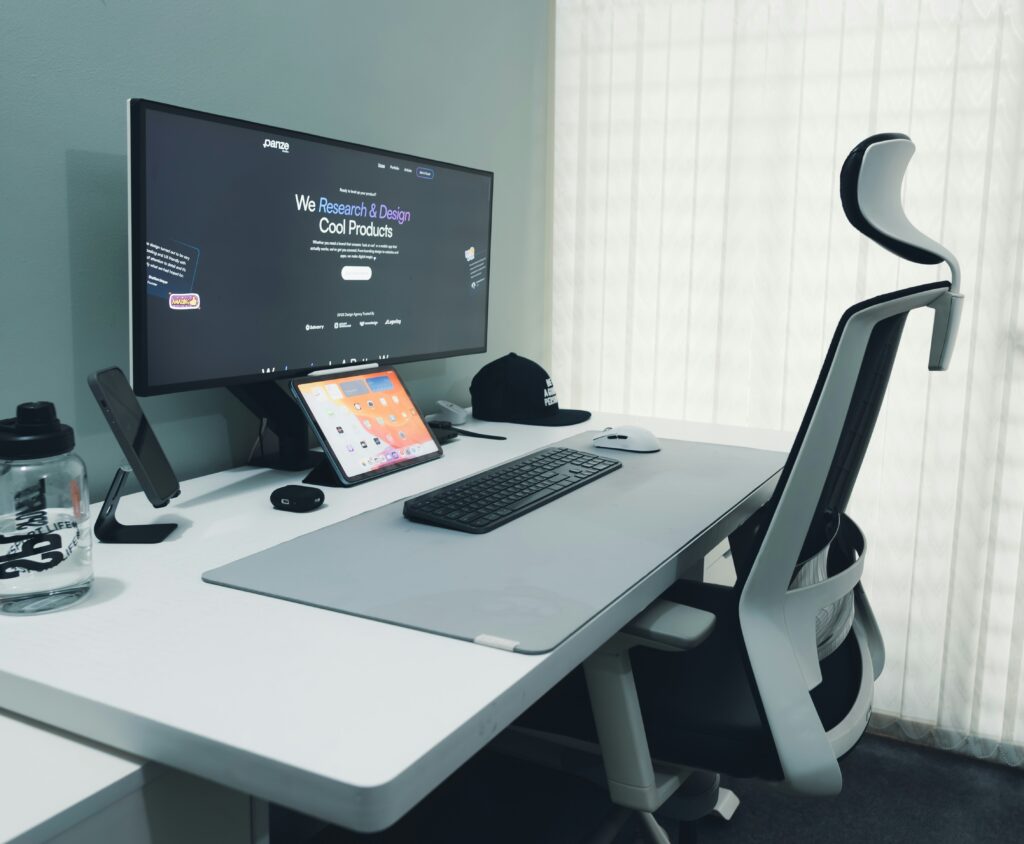
Why Laptop Ergonomics Matters for Remote Work
Poor laptop ergonomics can silently affect your health over time, and most people don’t notice until the discomfort becomes hard to ignore. This is especially common for those working remotely for long hours.
When your laptop screen sits too low, it forces your head forward, creating poor posture and unnecessary strain on your neck, spine, and shoulders. Over time, this can lead to chronic discomfort and reduced focus, energy, and productivity during your workday.
The Ideal Laptop Ergonomic Setup for Remote Work (What You Actually Need)
A truly ergonomic laptop setup comes down to two things: alignment and comfort. Proper laptop ergonomics ensures your screen sits at eye level — not below it — so your neck stays neutral and your spine remains properly aligned. Your back should be fully supported, and your arms should rest naturally at your sides with your wrists in a neutral position.
For remote work, even small adjustments to your environment can have a surprisingly big impact on how you feel by the end of the day. The goal isn’t perfection — it’s building a laptop setup that allows you to work longer, focus better, and finish the day without pain or strain.
Simple Ways to Improve Your Laptop Ergonomics for Remote Work
Improving your laptop ergonomics doesn’t require a complete office overhaul or a big budget. In fact, most of the changes that make the biggest difference are surprisingly simple — and you can start making them today.
Raising your laptop to eye level, using an external keyboard and mouse, or adjusting your chair height can significantly reduce neck, shoulder, and back strain over time. These aren’t complicated fixes — they’re small, practical adjustments that improve your overall laptop ergonomics in a remote work setup.
The key is consistency. Applying these changes daily can lead to less discomfort, better focus, and a more sustainable remote work experience.
Essential Tools for a Better Laptop Ergonomics Setup
The right tools can make improvements in your laptop ergonomics faster, easier, and more effective. These accessories are specifically designed to support better posture, reduce physical strain, and make long remote work sessions more comfortable and sustainable.
You don’t need a full professional setup to see real results. In fact, adding just a few well-chosen tools to your workspace can significantly improve your laptop ergonomics and overall remote work experience — leading to less tension, better focus, and improved daily comfort.

Laptop Stand for Better Posture
Most neck and back pain from laptop use comes down to one simple issue: your screen is too low. A laptop stand helps improve your laptop ergonomics by bringing your display to eye level, where it belongs — reducing the need to hunch forward or strain your neck throughout the day.
It’s one of the smallest upgrades you can make to your setup, but it delivers one of the biggest improvements in comfort. After just a few hours of use, many people notice how much better their posture feels and wonder how they ever worked without it.
If you’re starting to improve your remote work setup, this is one of the most effective tools to begin with.
Ergonomic Mouse for Better Comfort and Control
While a laptop stand helps improve your posture, an ergonomic mouse plays a key role in reducing strain on your wrist and hand. Using a laptop trackpad for long periods often forces your hand into unnatural positions, which can lead to discomfort over time.
An ergonomic mouse is designed to support a more natural hand position, helping to reduce tension in your wrist, forearm, and even your shoulder. This small upgrade can make a noticeable difference in your overall laptop ergonomics, especially during long remote work sessions.
If you spend several hours a day using your laptop, switching to an ergonomic mouse is a simple step that can greatly improve comfort and control.
External Keyboard for Better Laptop Ergonomics
An external keyboard allows you to keep your screen at the correct height while keeping your hands and wrists in a natural, relaxed position. This helps reduce strain on your wrists, forearms, and shoulders during long remote work sessions.
Ergonomic keyboards are specifically designed to support better hand alignment and reduce fatigue, often featuring curved or split layouts that promote a more natural typing position. �
Dell
Adding an external keyboard to your setup is one of the most effective ways to complete your ergonomic workspace and improve both comfort and productivity.
Final Thoughts: Build a Comfortable and Sustainable Setup
Improving your laptop ergonomics doesn’t require a complete workspace overhaul. With a few simple adjustments and the right tools, you can create a setup that supports your body instead of working against it.
Whether you’re working remotely full-time or just spending long hours on your laptop, investing in your comfort can make a noticeable difference in how you feel and perform each day.
Start small, stay consistent, and focus on building a workspace that helps you stay comfortable, focused, and productive over the long term.