

🕐 5 MIN ESTIMATED READ TIME
Here’s a mistake that’s easy to make: you buy a laptop stand, raise your screen to eye level, and keep typing on the laptop’s own keyboard and trackpad. Your neck starts to feel better. Your wrists and shoulders don’t — raising the screen changed one thing and quietly made another one worse.
A real laptop stand keyboard mouse setup works because the three pieces do different jobs that only function together. This guide covers exactly that: the core three-piece system, verified and chosen to work as one, not a redesign of your entire office. If you’re picturing a new chair, a monitor, and better lighting too, that’s a bigger project for another guide — this one is specifically about turning your laptop, on its own, into a workstation that doesn’t ask more of your body than it should.
Table of Contents
Affiliate Disclosure: This post contains affiliate links. We may earn a small commission at no extra cost to you. Availability is subject to change—please check the product links for current details.
Why three pieces, not one
Raise a laptop on a stand without changing anything else, and the built-in keyboard rises right along with the screen — they’re the same piece of hardware. Instead of typing on a keyboard at a comfortable, level height, you’re now reaching up and bending your wrists to type on one that’s tilted toward you. The neck problem gets better. The wrist and shoulder problem gets worse, not just unsolved.
That’s the whole logic behind an ergonomic laptop setup with external keyboard and mouse, rather than a stand on its own: raise the screen, separate the controls, and the result is a workspace that actually functions — instead of trading one strain for another. A stand raises the screen. An external keyboard and mouse let your hands stay at their own comfortable height and distance, completely independent of wherever the screen ends up.
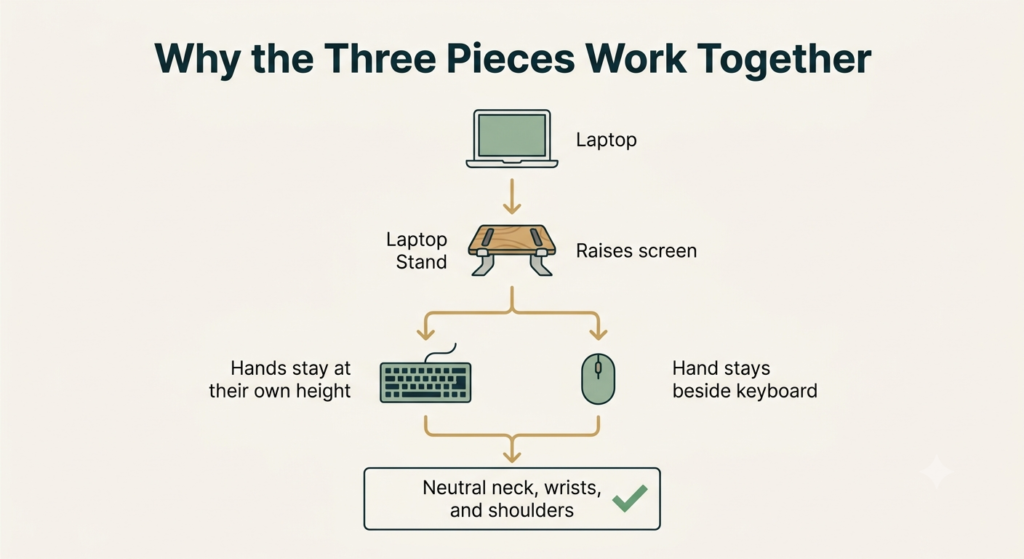
The neck problem gets better. The wrist and shoulder problem gets worse, not just unsolved.
A stand alone makes the neck problem better and the wrist and shoulder problem worse — not unsolved, worse. This kit raises the screen and separates the keyboard and mouse together, so nothing gets traded for something else.
The kit at a glance
If you’d rather skip ahead, here’s the short version:
| Piece | Role in the system |
|---|---|
| Rain Design mStand | Raises the screen closer to eye level |
| Logitech MX Keys Mini | Keeps typing at a comfortable, independent height |
| Logitech MX Master 4 | Keeps your hand and cursor control separate from the raised laptop |
The setup, piece by piece
Each piece earns its place here for the same reason: it does its job well without asking you to learn anything new or commit to a bigger change than you’re ready for.
Raise the screen
Our pick: Rain Design mStand. Its whole job here is simple: hold the laptop at a fixed, solid height with nothing to adjust and nothing to eventually loosen — machined from a single piece of aluminum, it just works, the first day and years later. The real limit here is fit, not function: it’s built for laptops under 10.4 inches deep. If yours runs larger, the fix isn’t to force it — a wider range of home office stands built for bigger laptops and more adjustment is worth a look instead.
Separate the controls
Our pick: Logitech MX Keys Mini paired with the Logitech MX Master 4. Together they do what the stand alone can’t: keep your hands at a keyboard and mouse height and distance that has nothing to do with where the screen ended up. Both are built around a traditional grip and a standard layout, so there’s no new typing position or cursor motion to learn — you sit down and use them exactly like you already know how. Neither is the most corrective option available, though. If your wrists genuinely need more, split and tilting keyboard designs address that directly. If it’s your grip that’s the real issue, a mouse shaped around a completely different hand position might do more for you than either of these.
Does this kit fit your situation?
This setup is for you if:
- You work mostly from one desk and want your laptop to function like a real workstation there.
- You’re still using your laptop’s built-in keyboard and trackpad, even after raising the screen.
- You want the easiest possible transition, with nothing new to learn.
Consider another route if:
- Your laptop is deeper than 10.4 inches — the stand in this kit won’t fit it.
- You already know a standard keyboard or mouse isn’t enough for your wrists or shoulders.
- You want maximum adjustability or the ability to free up your entire desk surface, not just raise your screen.
Setting it up right
Getting the pieces is most of the job, but knowing how to use a laptop stand with keyboard and mouse together — the order and positioning — matters just as much.
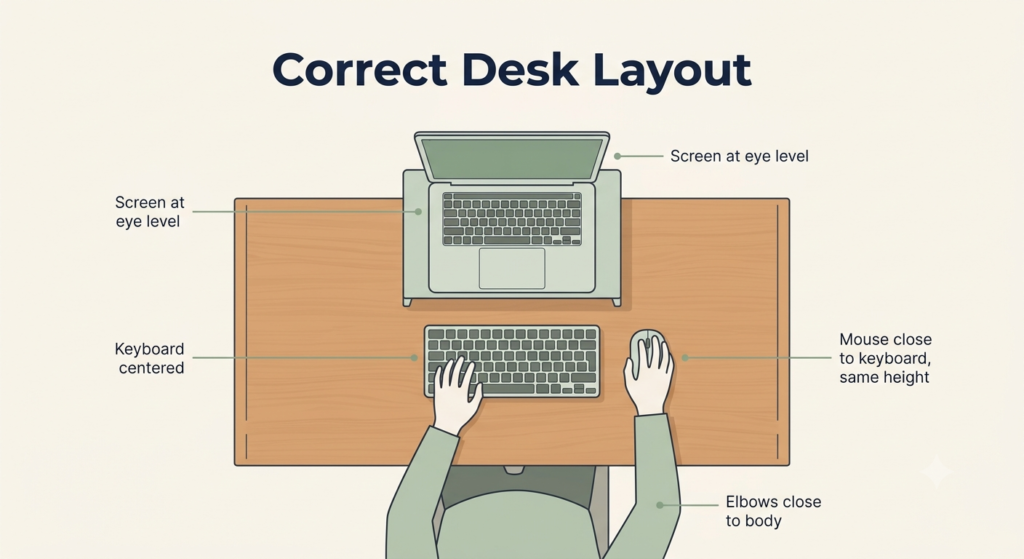
- Set the stand first. For laptop ergonomics, screen height comes down to one target: raise it until the top of the screen is around eye level when you’re sitting normally — you shouldn’t be tilting your head up or down to see it.
- Place the keyboard directly in front of you, close enough that your elbows stay near your sides rather than reaching forward.
- Put the mouse right beside the keyboard, at the same height — not lower on a different surface, which just reintroduces the reach you were trying to remove.
- Connect everything before you start working, not mid-task — most external keyboards and mice pair over Bluetooth in under a minute, and it’s easier to fine-tune the whole layout once nothing is still tethered to the laptop itself.
Want the reasoning behind these specific positions, not just the steps? That’s the focus of our full guide to improving posture while working on a laptop.
Frequently asked questions
Can I use this setup with any laptop?
Mostly, with one exception: the Rain Design mStand is built for laptops under 10.4 inches deep, so a larger or thicker laptop won’t fit on this specific stand. The keyboard and mouse work with any laptop, regardless of size, since they connect wirelessly rather than physically.
Do I need a monitor with a laptop stand, keyboard, and mouse?
No — this three-piece setup is designed to work with your laptop screen as the only display. A monitor is a genuine upgrade for many people, but it’s a separate decision with its own trade-offs, not a requirement for this setup to function well.
Will a wireless keyboard and mouse work with a laptop over Bluetooth, or do I need a dongle?
Both options usually exist. The MX Keys Mini connects over Bluetooth, and the MX Master 4 offers both Bluetooth and its own USB-C dongle — either works fine on most laptops, though the dongle can be more reliable on a locked-down work laptop where Bluetooth pairing is restricted by IT policy.
What is the correct ergonomic setup for a laptop?
For the core three-piece setup this guide covers, it comes down to a few consistent points: the screen raised to eye level, a keyboard and mouse at elbow height and within easy reach, and everything positioned so your neck, wrists, and shoulders stay in a neutral position rather than compensating for each other. Chairs, monitors, and lighting matter too, but they’re a separate layer beyond this core setup.
The Bottom Line: The Three Pieces Work Together, Not Alone
None of these three pieces does much on its own in a laptop workstation setup — the value is in how they work together, each one taking care of something the others can’t. If you’re still typing on your laptop’s own keyboard after raising it on a stand, that’s the one thing worth fixing first, and it’s a smaller project than it might feel like.
This kit won’t turn into a full office overhaul, and it isn’t meant to — it’s the specific fix for the specific problem of using a laptop as your main computer. If any single piece needs to work harder for your particular situation — a bigger laptop, wrists that need more than a standard keyboard offers, or a grip a standard mouse doesn’t support — that’s exactly what the more specific guides above are built for.
RELATED GUIDES
Best Laptop Stand for Home Office
If your laptop runs deeper than 10.4 inches, this covers stands built for larger machines.
Read the Guide →How to Choose an Ergonomic Keyboard
If your wrists genuinely need more than a standard layout, split and tilting designs address that directly.
Read the Guide →How to Choose an Ergonomic Mouse
If it’s your grip that’s the real issue, a different hand position might do more than a standard mouse.
Read the Guide →How to Improve Your Posture on a Laptop
The full reasoning behind why this exact positioning matters, not just the steps.
Read the Guide →Ergonomic Laptop Setup Guide: Where to Start
If you’re building your whole workspace from scratch rather than fixing one piece.
Read the Guide →Best Budget Ergonomic Setup for Remote Work
The same core system, sequenced by priority if your budget is tighter.
Read the Guide →About This Guide
This guide explains how a laptop stand, external keyboard, and mouse work together as one ergonomic system instead of three separate accessories. It helps you understand why raising the screen alone isn’t enough, how each piece solves a different problem, and how to set them up correctly without overhauling your entire workspace.
It’s researched and edited by César Cervantes González (Cerlez) using verified manufacturer specifications, ergonomics guidance, and independent reviews rather than hands-on testing.