
🕐 9 MIN ESTIMATED READ TIME
Search for the best external monitors for laptop remote work and you’ll find the same format everywhere: a list of specs, a “Best Overall” badge, and a table comparing refresh rates and port counts. None of that tells you which monitor actually addresses the problem you have right now.
This guide works differently. Instead of ranking monitors by features, it starts from three specific limitations a laptop-only setup creates — and matches each one to the monitor that genuinely helps with it. Not every monitor here is trying to be the best overall pick. Each one earns its place by addressing one problem well.
Table of Contents
Affiliate Disclosure: This post contains affiliate links. We may earn a small commission at no extra cost to you. Prices and availability are subject to change—please check the product links for current details.
Why comparing specs isn’t the same as solving your problem
Most monitor guides compare color accuracy, port counts, and refresh rate as if they matter equally to everyone. For someone working from a laptop, they don’t. A high refresh rate that shines in fast-moving video barely registers during a day of documents and spreadsheets. Extra USB-C ports help if you’re managing a cluttered desk, but they don’t change how your eyes feel by mid-afternoon or whether your neck is craning down at a fixed screen. Finding the best monitor for long hours of work often comes down to features you won’t spot at a glance on a spec sheet.
The specs that actually matter here are tied to three real limitations: how your eyes hold up during long reading sessions, whether your monitor’s stand can move to where your body actually needs it, and whether the resolution you picked makes sense for how far you sit from the screen. Everything else is a bonus, not the reason to buy.
Three monitors, three different problems — none is a universal best pick. Match the monitor to what’s actually wrong: tired eyes by afternoon (UltraSharp U2723QE), a stand that won’t move (S2725QS), or 4K that’s more than you need for how far you sit (MP275Q).
Match the monitor to your problem
If you’d rather skip ahead, here’s the short version:
| If this is your problem | Look for | Monitor to consider |
|---|---|---|
| Your eyes feel tired by the afternoon | Verified low blue light + flicker-free certification, not just marketing language | Dell UltraSharp U2723QE |
| Your current stand won’t move to where you need it | Full height, tilt, swivel, and pivot adjustment | Dell S2725QS |
| You’re not sure if you actually need 4K | QHD resolution built for typical desk viewing distances | MSI PRO MP275Q |
Three monitors, three different problems
None of these three is trying to be the single best monitor overall — each one earns its place by addressing one limitation particularly well. Two of them are even the same resolution and screen size, which makes the reasoning behind each pick worth reading carefully, not just the spec sheet.
For visual comfort during long reading sessions: Dell UltraSharp U2723QE
If you spend most of your day reading — documents, code, spreadsheets, long email threads — your eyes are doing more work than you probably notice, and by late afternoon that adds up. Part of that comes from flicker your eyes can’t consciously register but still respond to, and from sustained blue light exposure — neither shows up as a single moment of discomfort, more something that accumulates by mid-afternoon. The type of solution here isn’t “eye care” as a marketing phrase; it’s a monitor with independently verified hardware that actually reduces blue light and flicker, not just a software toggle buried in a menu.
Our pick: Dell UltraSharp U2723QE. It carries TÜV Rheinland certification specifically for its hardware-based low blue light solution and flicker-free display — a more rigorous tier than a general “eye care” label, verified by an independent lab rather than just claimed on the box. What that certification actually measures is worth understanding before taking any “eye care” label at face value. The IPS Black panel doubles typical contrast to 2000:1, keeping dark text and dark-mode interfaces from looking washed out, and a matte anti-glare coating cuts down on reflections that would otherwise force your eyes to work around them. It also happens to include a fully adjustable stand and 90W USB-C charging, but that’s a bonus here, not the reason it made this list — for the stand specifically, the next pick makes a stronger case.
What we like
- Independently certified, not just labeled: TÜV Rheinland tests the hardware directly, rather than relying on a marketing claim.
- Noticeably deeper contrast: the IPS Black panel’s 2000:1 ratio keeps dark content from looking gray or washed out.
- Genuinely glare-resistant: the matte coating holds up in rooms with real windows and overhead lighting, not just controlled studio shots.
What to keep in mind
- The highest price of the three: you’re paying for certified hardware, not just resolution or size.
- 4K scaling behaves differently across operating systems: Windows and macOS handle a 27-inch 4K screen’s scaling somewhat differently, so text sharpness and app compatibility can vary slightly depending on which you use.
Best for: anyone whose workday is dominated by reading and detailed screen work, and who’s willing to pay more for hardware-verified comfort rather than a marketing claim.
Not the right fit if: your main complaint is a stand that won’t move rather than tired eyes — the S2725QS solves that specific problem for less money, or if you sit far enough from your desk that QHD would serve you just as well as 4K — see the MP275Q instead.
The IPS Black panel doubles typical contrast to 2000:1 — dark text and dark-mode interfaces stay sharp instead of looking washed out.
For a stand that doesn’t force your position: Dell S2725QS
A fixed or barely-adjustable stand means you compensate with your body instead — leaning, craning, or sitting at whatever height the monitor happened to ship at. The type of solution here isn’t a fancier monitor; it’s simply one with a stand that actually moves in every direction your body might need. Ergonomic monitor height adjustment isn’t a nice-to-have in this case — it’s the main reason this pick exists.
Our pick: Dell S2725QS. Its stand confirms full height, tilt, swivel, and pivot adjustment, letting you raise the screen to eye level, angle it to cut glare, or rotate it into portrait mode for reading long documents — without needing a separate monitor arm. It includes Dell’s ComfortView Plus, which reduces blue light output by up to 35%, though that’s Dell’s own engineering claim rather than an independently certified rating like the U2723QE’s. What you’re paying for here is the stand doing the adjusting, not certified hardware doing it — and at nearly $400 less than the U2723QE, that’s a real trade-off worth making consciously, not by accident.
What we like
- Genuinely full range of motion: height, tilt, swivel, and pivot are all confirmed, not just height alone.
- Meaningfully lower cost than the certified pick: a real gap in price for someone whose main problem is a stand that won’t move.
- Anti-glare coating included: the same practical benefit as the pricier option, just without the independent certification behind the blue-light reduction.
What to keep in mind
- ComfortView Plus is Dell’s own claim, not third-party verified: if certified hardware low blue light matters more to you than adjustability, the U2723QE is the more precise choice.
- Doesn’t correct your posture on its own: the stand makes a better position possible — you still have to actually use the adjustment range instead of leaving it at the default.
Best for: anyone upgrading from a stand that won’t move, who wants the widest possible range of physical adjustment without paying for certified hardware they may not need.
Not the right fit if: verified blue-light reduction matters more to you than adjustability — the U2723QE’s certification is more rigorous than ComfortView Plus.
For matching resolution to how far you actually sit: MSI PRO MP275Q
Most guides treat 27-inch 4K as the default answer, but that assumes everyone sits close enough to actually see the extra pixel density — and plenty of people don’t. If your desk is deeper than average, or you just prefer larger text without fighting your operating system’s scaling settings, QHD isn’t a downgrade. It’s a genuinely better match for how far you actually sit — the core of choosing the best monitor size and resolution for office work over defaulting to whatever spec sounds most impressive.
Our pick: MSI PRO MP275Q. Marketed specifically as an office monitor, it carries TÜV Rheinland Eye Comfort certification for reduced blue light and anti-flicker performance, plus an anti-glare coating. It’s worth being precise here: this is a different, more general certification tier than the U2723QE’s hardware-specific Low Blue Light Solution rating — both are independently verified, but not identical in scope. Still, it’s a genuine comfort credential at less than a quarter of the U2723QE’s price. The honest trade-off is the stand: it only tilts, without the height, swivel, or pivot adjustment the Dell picks offer. It does support a standard 100mm VESA mount, so adding a separate monitor arm later is possible without replacing the screen itself.
What we like
- QHD sized for typical viewing distances: larger, more comfortable text without depending on 4K scaling.
- Certified comfort features at a much lower price: the same TÜV-backed category of protection as the premium pick, without the premium cost.
- VESA-compatible if you need more adjustment later: the limited stand isn’t necessarily permanent.
What to keep in mind
- Tilt-only stand out of the box: no height, swivel, or pivot adjustment without adding a separate arm.
- Lower resolution than the other two: a genuine trade-off, not a flaw, for anyone who does want maximum pixel density.
Best for: anyone who sits farther from their monitor than a tight desk setup, or who wants genuine comfort certifications without paying 4K prices.
Not the right fit if: you specifically need 4K’s pixel density for detailed visual work, or your stand needs more than tilt adjustment right out of the box.
If even a fully adjustable stand like the S2725QS doesn’t get your screen exactly where you need it, moving up to a dedicated monitor arm is worth a closer look — that’s a different piece of hardware than the monitor itself, closer to fine-tuning an existing desk setup than choosing a screen.
How to setup an external monitor with your laptop ergonomically
A few quick things make the difference between a monitor that actually helps and one that just adds a second screen to fight with:
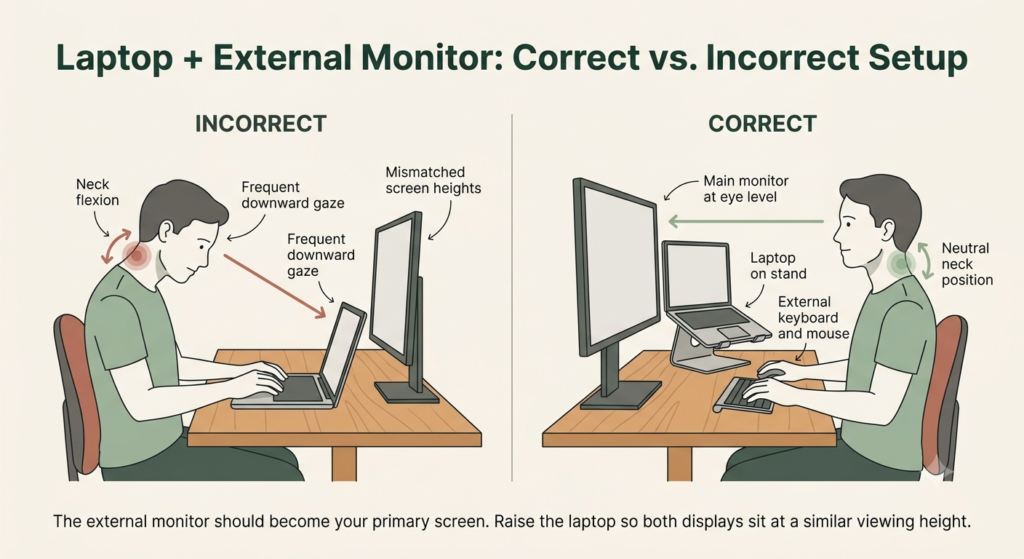
- Align both screens at a similar height — your laptop screen and external monitor should sit close to the same eye level, not one much lower than the other.
- Avoid leaving the laptop screen as your main view for long periods once the external monitor is set up — glancing down at it constantly defeats the purpose of raising your main display.
- Use a laptop stand if the built-in screen becomes a secondary display — this keeps both screens at a workable height instead of one sitting flat on the desk below eye level.
If you’re building your whole workspace from scratch rather than adding a monitor to an existing setup, working through the right order for everything else is worth doing on its own.
If your setup needs to travel with you instead of staying at one desk, a portable monitor solves a different problem than anything above — worth checking separately, alongside the right portable laptop stand to go with it.
Frequently asked questions
What is the best screen size and resolution for a laptop remote setup?
27 inches is a comfortable middle ground for most desks, but resolution should match how far you actually sit. 4K rewards sitting closer with sharper text and more visible detail, while QHD gives you larger, easier-to-read text at a more typical desk distance without depending on your operating system’s scaling.
How does monitor height adjustability affect workspace ergonomics?
A stand with real height, tilt, and swivel range lets you position the screen to match your sitting height and viewing angle, rather than adjusting your own posture to match wherever the monitor happened to ship. A tilt-only stand still helps with glare, but it won’t get the screen to eye level if your desk and chair combination puts it too low or too high.
What monitor features help support visual comfort during long remote workdays?
Independently certified low blue light and flicker-free technology are worth more than a general “eye care” label, since certification means the hardware was actually tested, not just marketed. A matte anti-glare coating also matters more than most buying guides mention, especially in rooms with windows or overhead lighting.
How do I pair an external monitor with my laptop properly?
Keep both screens at a similar eye level, and avoid treating the laptop’s built-in screen as your main display once the external monitor is set up — if you’re looking down at it for long stretches, a laptop stand solves that specific problem.
The bottom line: Match the Monitor to the Limitation, Not the Spec Sheet
None of these three monitors is the universal best pick — each one addresses a specific limitation the other two don’t. If your eyes wear out by mid-afternoon, the U2723QE’s certified comfort features are worth the higher price. If your current stand won’t move to where your body needs it, the S2725QS delivers full adjustability without the premium cost. If you’re not convinced 4K is worth it for how far you actually sit, the MP275Q makes a genuine case for QHD instead of treating it as a compromise.
The right choice depends on which limitation you’re actually dealing with — not which monitor has the longest spec sheet.
If none of these three fit your exact situation, you can browse more ergonomic monitor for office options using the same rule: match the monitor to the problem you actually have, not just the specs that sound most impressive.
RELATED GUIDES
Ergonomic Desk Setup Adjustments
If even a fully adjustable stand doesn’t get your screen exactly where you need it, a dedicated monitor arm goes further.
Read the Guide →Best Portable Laptop Stand
If your setup needs to travel with you, this pairs naturally with a portable monitor as a different solution than anything here.
Read the Guide →About This Guide
This guide is designed to help you choose an external monitor based on the limitation that’s actually affecting your laptop workspace, rather than the feature that sounds most impressive. The goal is to make it easier to understand which trade-offs are worth paying for—and which ones probably aren’t for the way you work.
It’s researched and edited by César Cervantes González (Cerlez) using verified manufacturer specifications and independent reviews rather than hands-on testing.