
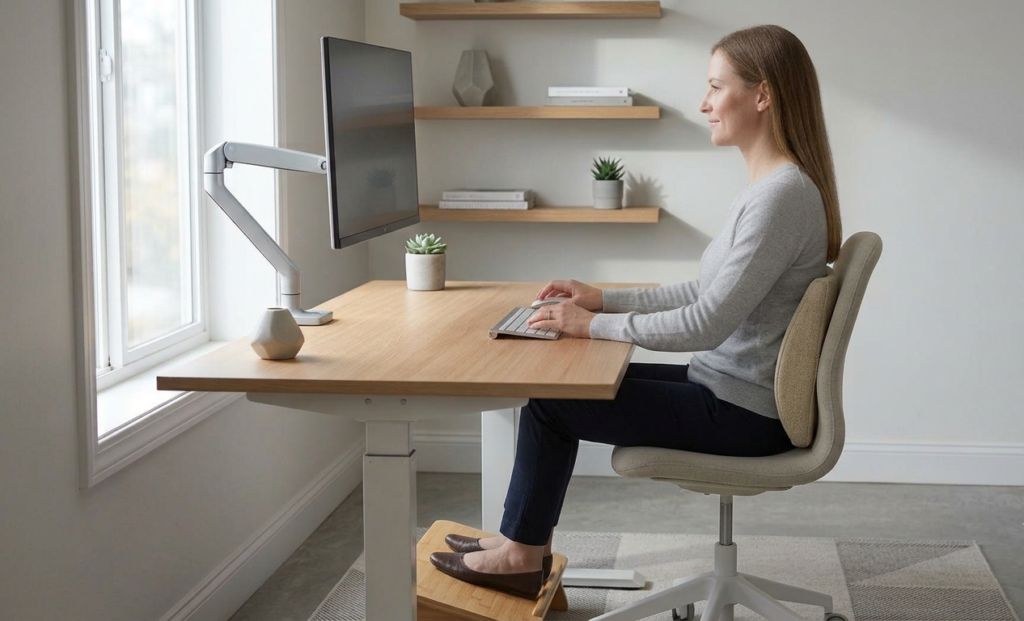
9 MIN ESTIMATED READ TIME
You did the research. You bought the recommended chair, got the monitor to a reasonable height, picked up a decent keyboard and mouse. And something still hurts — maybe your neck by mid-afternoon, maybe your lower back by the end of the day. That’s not a sign you did something wrong. It’s a sign that “standard” and “right for you” aren’t always the same thing.
Ergonomic desk setup adjustments are what close that gap: small, targeted corrections for the specific ways a standard setup doesn’t quite match your body. This isn’t about starting over or buying a whole new setup — it’s about identifying exactly which part of your body is still complaining, and fixing that one thing.
Table of Contents
Affiliate Disclosure: This post contains affiliate links. We may earn a small commission at no extra cost to you. Availability is subject to change—please check the product links for current details.
Why “standard” isn’t the same as “right for you”
Every recommended monitor height, every “ideal” chair, every standard desk is built around an average body — average height, average proportions, average posture habits. Yours probably isn’t average in every way, and that’s not a flaw, it’s just how bodies work. A setup that’s 90% right for most people can still leave you with a very specific, very real 10% that doesn’t fit.
Before buying anything, it’s worth checking whether you can close that gap for free. Raise or lower your chair. Angle your monitor a few degrees. Move your mouse a couple inches closer. Small adjustments to what you already own solve more discomfort than people expect — and pairing those with a habit of shifting position every 20 minutes or so, instead of freezing into one position for hours, matters as much as any single accessory below.
Not everyone reading this is starting from the same place, though. If a stand, an external keyboard and mouse, a chair, and a monitor aren’t in place yet, get those settled first, in that order — the three adjustments below only make sense once the basics are already there. And if the budget for any of this is tight, a footrest and a lumbar cushion don’t have to be premium to help; a more affordable version of either one can still make a real difference.
Three adjustments, three different problems — none compete with each other, so pick based on what’s actually bothering you: neck creeping toward the screen (monitor arm), feet not properly grounded (footrest), or lower back sliding forward (lumbar support).
Match your symptom to the fix
If you’d rather skip ahead, here’s the short version:
| Feeling | Possible reason | Consider |
|---|---|---|
| Neck strains toward the screen by afternoon | Monitor sits too low or off to the side | Ergotron LX Monitor Arm |
| Feet dangle, or legs feel restless and tired | Chair or desk height doesn’t match your legs | Humanscale FM300 Footrest |
| Lower back slides forward in your chair | Chair’s built-in lumbar curve doesn’t match your spine | Mount-It! ErgoActive Lumbar Support |
Three adjustments, three different problems
Each of these fixes a different part of the body, so none of them compete with each other — you pick based on what’s actually bothering you, not all three at once.
Fine-tuning eye level: the role of an adjustable monitor arm
If your neck still creeps toward the screen no matter how you’ve propped things up, what actually helps is a monitor arm for neck pain, not another fixed stand — the difference is range, not effort. A fixed stand gives you one height. A monitor arm gives you room to actually find yours.
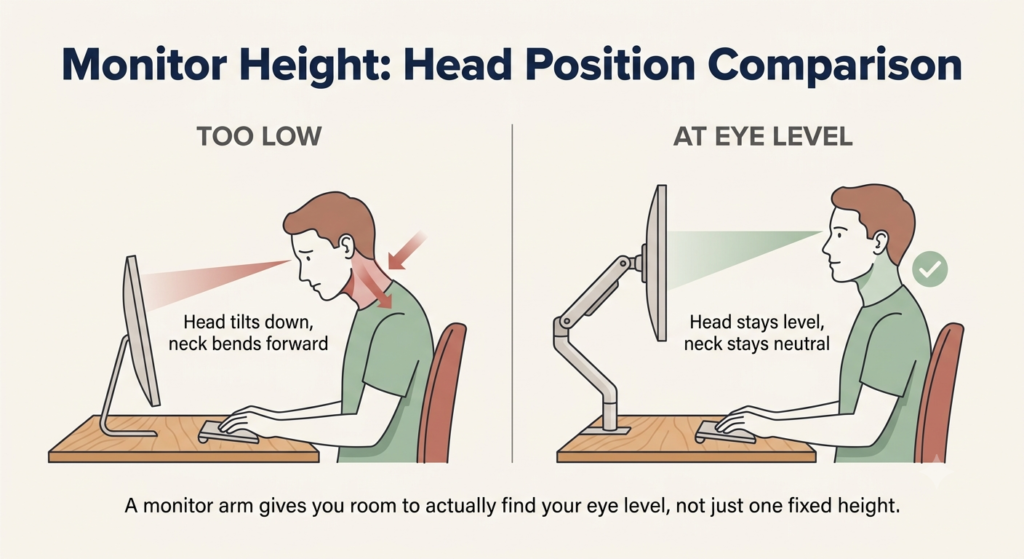
Our pick: Ergotron LX Monitor Arm. What makes this useful isn’t any single spec, it’s the range: enough lift and rotation to go from “close enough” to “actually correct” for almost any desk and any monitor, including ultrawides. Once it’s set, built-in cable management keeps the desk looking clean instead of turning the upgrade into new clutter. It’s built for a proper monitor, not a laptop screen on its own, so it only helps once you’re pairing it with an external display.
What we like
- Real range, not just height: the lift and rotation cover the small differences most fixed stands can’t — the couple of degrees or inches that separate “fine” from “actually comfortable.”
- Frees up real desk space: clearing the monitor’s base off the desk creates room a fixed stand never gives back.
- Backed by a decade of warranty: a long warranty on a moving mechanical part is a real signal the manufacturer expects it to last, not just sound good in the listing.
What to keep in mind
- It clamps to your desk, not your laptop: it’s designed for an external monitor, so it doesn’t help if a laptop screen alone is the problem.
- Needs a sturdy edge to clamp to: very thin or flimsy desks may not give the clamp enough to grip.
Best for: anyone whose neck still creeps toward the screen no matter how they’ve propped up a fixed stand. Not the right fit if: you’re working from a laptop screen alone — this only helps once you’re pairing it with an external monitor.
Correcting pelvic tilt: finding the right footrest height
When your feet don’t quite reach the floor — or reach it at an angle that presses your thighs into the front of the seat — your pelvis tilts back to compensate. That’s exactly what an under-desk footrest for pelvic alignment is built to fix, and it shows up as leg and lower-back discomfort, not just tired feet.
Worth checking first: sometimes the real issue isn’t your feet, it’s that the desk or chair itself is simply too tall for you. A footrest fixes the space between your feet and the floor — it doesn’t fix a desk that’s the wrong height to begin with. If raising your chair would put your arms above the keyboard, that’s the actual problem to solve, and a footrest is the right tool for it.
Our pick: Humanscale FM300. Where a lot of footrests are a single fixed slab of plastic, this one rocks — ball-bearing rollers let your feet shift and move instead of locking into one static position for hours, which is closer to how feet actually want to behave during a workday. It’s built from wood and steel rather than plastic, which matters most in the long run: it’s the difference between a footrest that holds up and one that cracks under pressure a cheaper one eventually can’t take.
What we like
- Keeps your feet moving, not fixed: the rocking motion lets you shift position throughout the day instead of locking your legs into one static angle.
- Built to actually last: wood and steel construction holds up to daily pressure in a way plastic footrests tend not to over time.
- Stays put on hard floors: non-skid pads and rubber feet keep it from sliding out from under you mid-task.
What to keep in mind
- Limited height range: it’s built for fine adjustment, not for closing a large gap between your feet and the floor.
- Not something you’ll want to relocate often: at 9 pounds of wood and steel, it’s built to stay in one place, not a footrest you’ll shuffle between a home office and a shared desk.
Best for: anyone whose feet don’t quite reach the floor, or reach it at an angle that presses their thighs into the seat. Not the right fit if: the real problem is a desk or chair that’s simply too tall — a footrest can’t fix that on its own.
Supporting the spinal curve, not just cushioning it
A lot of chairs come with “lumbar support” that’s really just extra padding — comfortable for the first hour, but not actually holding the curve of your lower spine in place once you’ve settled in and your posture starts to drift. Real lumbar support for chair slouching prevention has to do one specific thing: stay exactly where your spine needs it, not just somewhere on your back.
Our pick: Mount-It! ErgoActive Lumbar Support. What sets this apart isn’t the memory foam itself — most lumbar cushions use something similar — it’s the two adjustable straps that let you slide it to the exact point your lower back needs, and keep it there through however many times you shift position or move to a different chair. The straps adjust position, not firmness, so if what you actually need is a denser or softer fill than memory foam offers, this won’t give you that.
What we like
- Stays exactly where you put it: the strap system means it doesn’t slowly slide down your back the way an unsecured cushion does by the afternoon.
- Moves with you between chairs: the same support works whether you’re at your desk, in a different room, or in the car, instead of being locked to one seat.
- Easy to keep clean: the cover unzips and washes, which matters for something in contact with your back every day.
What to keep in mind
- Adjusts position, not firmness: if memory foam isn’t the density your back responds to, the straps won’t change that.
- Requires a chair with a backrest to strap to: it can’t help on a bench, stool, or backless seat.
Best for: anyone whose lower back slides forward because their chair’s built-in lumbar curve doesn’t match their spine. Not the right fit if: memory foam isn’t the density your back needs — the straps adjust position, not firmness.
The pelvic-lumbar connection: how foot support affects lumbar comfort
These last two adjustments aren’t actually independent, and it’s worth understanding why. When your feet aren’t properly supported, your pelvis tends to tilt backward to compensate — and a pelvis tilted back flattens the natural curve in your lower spine, which is the exact curve a lumbar cushion is trying to maintain. In practice, that means a footrest can make a real difference in how well your lumbar support actually works, and a lumbar cushion can feel like it isn’t doing its job when the real issue is happening lower down, at your feet.
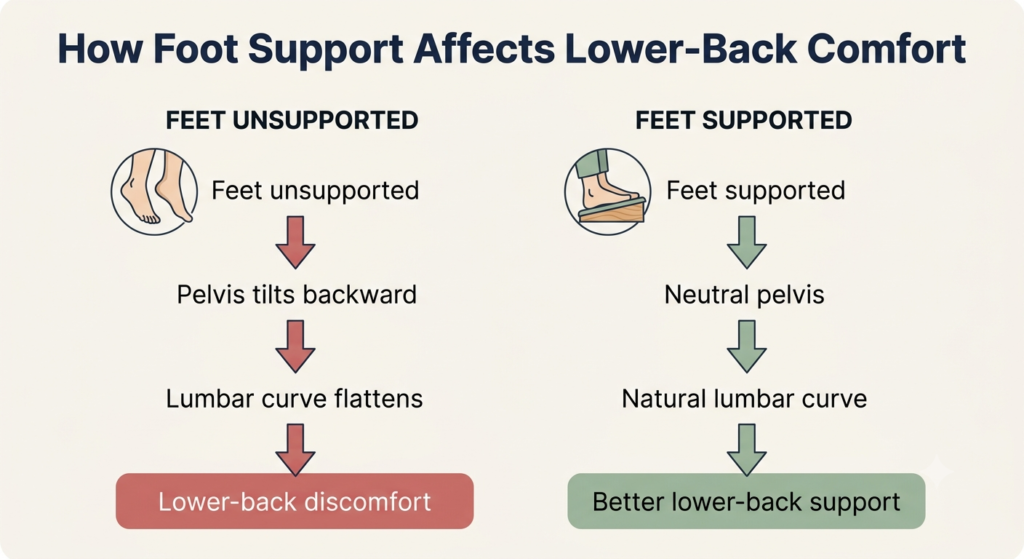
This doesn’t mean you need both. If your feet already rest flat and comfortable, this connection isn’t your problem. But if you’ve tried a lumbar cushion before and it never quite seemed to help, it’s worth checking your feet before assuming the cushion itself was wrong.
When your feet aren’t properly supported, your pelvis tilts back — flattening the exact curve in your lower spine that a lumbar cushion is trying to maintain.
Frequently asked questions
Why does my back still hurt with an ergonomic chair?
An ergonomic chair gives you the tools for good posture — it doesn’t guarantee you’re using them correctly, and its built-in lumbar support is shaped for an average spine, not necessarily yours. If the chair’s curve doesn’t quite line up with your lower back, or your feet aren’t properly supported, discomfort can persist even in a genuinely well-designed chair.
How do I know if my desk setup is causing my neck pain?
Notice where your head is pointed by the end of the day. If you’re tilting your chin down toward the screen or leaning forward to read it, your monitor is likely lower or farther than it should be. Neck pain that eases on weekends and returns during work sessions can be a sign that your setup is contributing to the problem.
Do I need a footrest if my feet touch the floor?
Not necessarily — touching the floor isn’t the same as being properly supported. If your knees sit noticeably higher or lower than your hips, or your thighs press into the front edge of the seat, a footrest can still help even though your feet technically reach.
How does a footrest help with lower back pain?
By giving your feet stable support, it lets your pelvis settle into a more neutral position instead of tilting backward to compensate for dangling or awkwardly angled legs. That neutral pelvis position helps your lower spine keep its natural curve, which is where a lot of lower back discomfort actually originates.
How high should my monitor be to help avoid slouching?
As a starting point, the top of the screen should sit at or just below eye level, so you’re looking slightly down rather than up or straight ahead with your chin lifted. From there, small adjustments — an inch here, a slight tilt there — usually matter more than getting the exact number right.
The Bottom Line: Start With What Fits You
You don’t need all three of these — you need whichever one matches what’s actually bothering you. If it’s your neck, start with the monitor arm. If it’s your legs or lower back and your feet don’t feel properly grounded, start with the footrest, and pay attention to whether it changes how your lumbar support feels too. If your back is the complaint and your feet are already comfortable, go straight to the lumbar support.
None of these replace a setup that fits reasonably well to begin with — these ergonomic desk setup adjustments are for the specific ten percent that “standard” didn’t quite get right for your body.
If none of these three match your exact situation, you can browse more ergonomic desk accessories using the same rule: match the adjustment to the specific spot that’s bothering you, not the other way around.
RELATED GUIDES
Best External Monitors for Laptop Remote Work
A monitor arm only works once you’re pairing it with an external display — this helps you choose one.
Read the Guide →How to Choose an Ergonomic Chair for Remote Work
If your chair’s built-in lumbar curve doesn’t match your spine at all, it may be time to look further back than an adjustment.
Read the Guide →About This Guide
This guide helps you figure out which small adjustment your setup is still missing when an ergonomic workspace doesn’t feel as comfortable as it should. Instead of starting over or buying equipment you may not need, it shows how to match specific symptoms to specific fixes—because a setup that’s right for most people isn’t always the right fit for your body.
It’s researched and edited by César Cervantes González (Cerlez) using verified manufacturer specifications and independent reviews rather than hands-on testing.