
🕐 11 MIN ESTIMATED READ TIME
By mid-afternoon, your neck and shoulders are quietly keeping score — even though nothing about your workday looked wrong from the outside. That’s because a laptop, by design, asks your body to make a trade it can’t win: raise the screen and your hands suffer; lower the keyboard and your neck does.
Learning how to improve your posture while working on a laptop starts with understanding that trade-off, not fighting it. This guide won’t sell you anything, and it won’t promise perfect posture in five minutes. It’s the technique and the daily habits that actually hold up — at a desk, on a couch, or wherever your workday happens to land. A few of the fixes are free. A couple of them, later on, point to a piece of gear worth considering — but only once you understand why you’d need it.
Table of Contents
There’s no laptop position that fixes both your neck and your hands at once — the design won’t allow it. This guide focuses on the compromise that works for your situation, plus the daily habits that matter more than any single “correct” posture.
Why your laptop fights your posture more than a desktop ever did
On a desktop computer, the screen and the keyboard were never really connected. You could raise the monitor on a stand while the keyboard stayed at elbow height, and your neck and your hands each got what they needed. A laptop erases that freedom: the screen and the keyboard are one hinged piece, so moving one moves the other.
Set the laptop where your hands are comfortable — roughly table height — and the screen ends up low enough that you tip your head down to see it. Do that for hours and your neck holds a forward-bent position it was never built to sustain. Raise the laptop instead, so the screen meets your eyes, and now the keyboard rises with it. Your shoulders climb toward your ears to reach it, and your wrists bend upward at an angle that adds strain of its own.
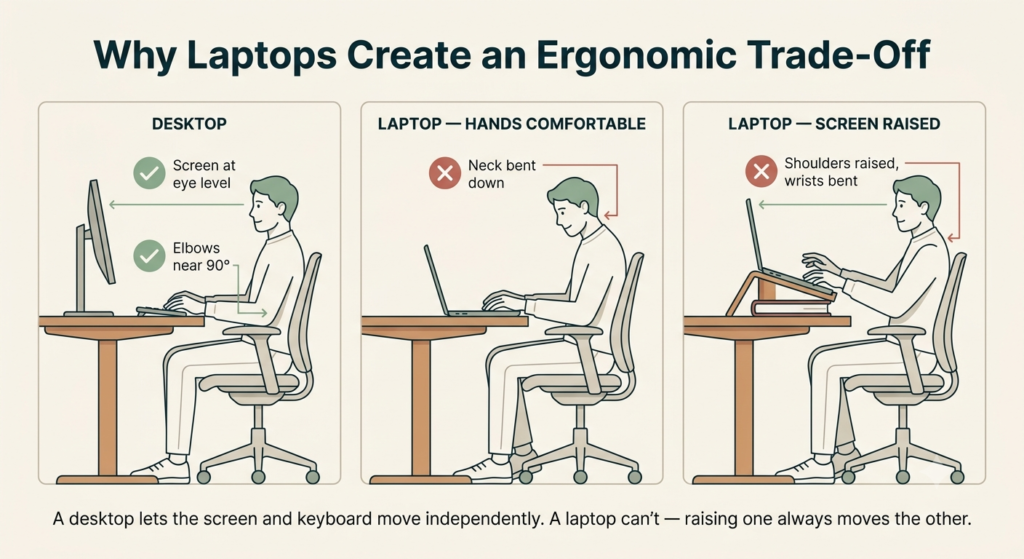
There’s no laptop position that solves both problems at once, because the design doesn’t allow it. That single fact explains most of what follows in this guide: some of it is about finding the best compromise your laptop allows; some of it is about breaking the laptop’s grip on that trade-off entirely.
The body positions that actually matter
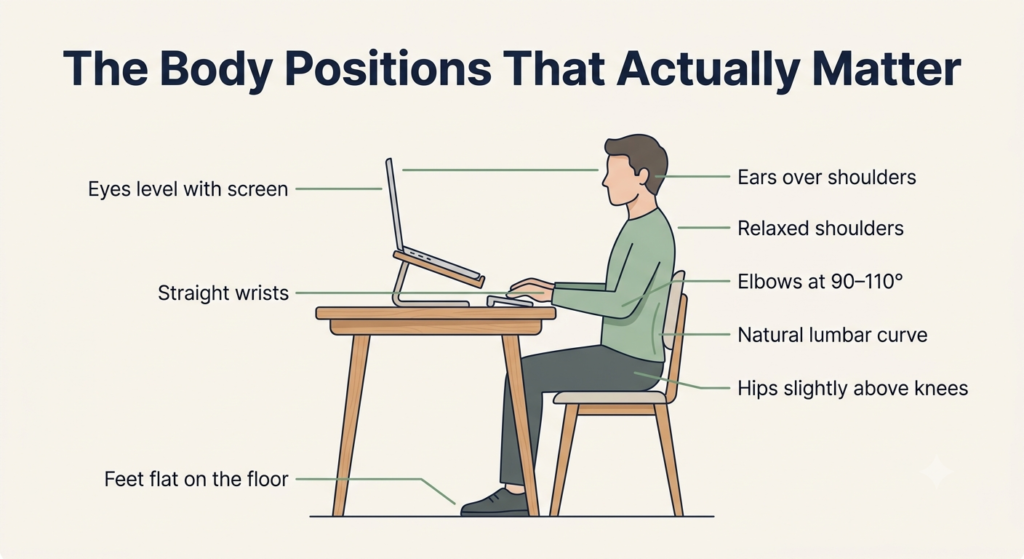
Most posture advice stops at “sit up straight,” which is true and almost useless on its own. Learning how to sit ergonomically with a laptop means going further than that, because a laptop puts strain on parts of your body that generic advice rarely mentions. Here’s what to actually check, from your eyes down to your feet.
Head and neck: keeping your gaze level
Your head weighs about as much as a bowling ball, and every inch it tips forward multiplies the load your neck has to carry. The target position is simple to describe and easy to lose without noticing: ears roughly over your shoulders, chin level, eyes meeting the middle of the screen without tilting your head up or down.
Your head weighs about as much as a bowling ball, and every inch it tips forward multiplies the load your neck has to carry.
Screen height gets most of the attention, but it isn’t the only reason your head creeps forward. Glare, dim lighting, or text you’re straining to read all pull your face closer to the screen just as effectively as a low monitor does — so if your neck keeps drifting forward no matter how you adjust the laptop, the next thing worth checking is how you’ve lit your workspace.
Shoulders, elbows, and wrists: the forgotten triangle
Shoulders belong down and relaxed, not hiked up toward your ears — a position most people hold for so long during typing that they stop noticing they’re doing it. From there, your elbows should stay close to your sides, bent to somewhere around 90 to 110 degrees, and your wrists should stay flat and straight rather than bending up, down, or sideways to reach the keys.
A laptop’s flat, low keyboard makes this harder than it sounds, because typing directly on it usually means your wrists either hover at an awkward angle or rest against the sharp edge of the laptop itself. If the edge of the table or the laptop is what’s digging into your wrists, that’s a padding problem more than a posture one — a slim wrist rest solves it in seconds, without changing anything else about how you sit.
Hips, spine, and feet: the foundation most guides skip
Everything above this point depends on what’s happening at your hips. Sit toward the back of the chair so your lower back keeps its natural inward curve, rather than perched on the edge with your spine rounding into a C. Your hips should sit slightly higher than your knees, and your feet should rest flat on the floor — or on a footrest, a stack of books, or your bag if the chair is too tall for you.
A chair that doesn’t support that curve on its own puts everything else on this list to work twice as hard just to compensate, no matter how carefully you sit. That’s exactly why choosing a chair built for the job matters as much as any single habit here, and it’s worth doing properly if your workday chair is a permanent one rather than a borrowed café seat.
Fixing the laptop’s trade-off without buying anything
Getting good laptop ergonomics without an external monitor starts with something you probably already own: a stack of books, a shoebox, or a small pile of magazines under the back edge of the laptop raises the screen several inches without costing anything, and it works surprisingly well for a call, an email session, or an hour of reading.
If your chair is too low relative to the table, the same trick works in reverse: a folded blanket or a spare cushion under you raises your whole body instead of the laptop, which keeps your elbows level with the keyboard while the screen also comes up to meet you. Tilting the screen back slightly can also cut down on the glare that pulls your head forward, for free.
Where these tricks run out of road is prolonged, hands-heavy work. Typing for six or eight hours on a laptop keyboard elevated on a stack of books puts your wrists at an angle no amount of book-stacking fixes, because raising the screen without separating the keyboard just moves the strain from your neck to your hands. For a short session, that’s a fair trade. For a full workday, these fixes have a ceiling — one this guide comes back to later.
Working comfortably in real, imperfect spaces
Not every work session happens at a proper desk, and pretending otherwise doesn’t help anyone. Good laptop posture tips for remote workers have to account for that: the advice above still applies, but how strictly you follow it should depend on where you are and what you’re doing.
Short sessions vs. long sessions: different rules
Checking email for ten minutes on the couch doesn’t call for the same setup as a full afternoon of writing. The deciding factor isn’t just how long you’ll be there — it’s what your hands will be doing. Reading, watching a video, or scrolling through messages puts very little strain on your wrists, so a relaxed, imperfect position for twenty minutes is genuinely fine.
Typing-heavy work is different, even in short bursts. Drafting a long email or entering data for half an hour can aggravate your wrists faster than an hour of reading will, because the repetitive motion is what causes the strain, not the clock. If you notice you’re doing focused typing more often than not, it’s worth reaching for an external keyboard and mouse even for what feels like a short session — you don’t need a full desk setup to justify using one.
Working on the couch, in bed, or on the go: harm reduction strategies
You’re going to work from the couch sometimes, or from bed, or from a cramped tray table at 30,000 feet — telling you not to won’t change that, so here’s how to do it with less damage. On a couch or bed, prop yourself against a solid backrest rather than sinking into cushions that let your spine curve into a slump, and rest the laptop on a stable surface — a lap desk, a large book, or even a sturdy pillow — rather than directly on your legs, where it tips the screen down and forces your neck into exactly the position you’re trying to avoid.
On a plane or at a cramped table, raise the laptop screen with whatever’s at hand, keep your shoulders back rather than rounded forward around the keyboard, and accept that this isn’t the position for a long stretch of typing — treat it as something to get through, not settle into for hours.
If travel is a regular part of how you work rather than an occasional evening on the couch, the small kit that makes the biggest difference is worth building once and carrying with you from then on.
Daily habits that matter more than “perfect” posture
Even the best position in the world becomes a problem if you hold it for six hours without moving. The daily habits that prevent hunching over a laptop aren’t about freezing into one “correct” posture — they’re about never staying in any single position long enough for your body to protest. Small, frequent changes protect you more than one perfect, motionless hour.
This is also where a lot of upper-back pain quietly starts. Your wrists, shoulders, neck, and upper back work as one chain: bent wrists pull tension up into the shoulders, and rounded shoulders round the upper spine along with them. By the time your upper back aches, the actual problem may have started at your hands hours earlier.
The 20-minute reset: micro-movements to break static posture
Set a loose reminder for roughly every 20 minutes, and when it goes off, run through a short reset rather than just glancing away from the screen:
- Roll your shoulders back and down, away from your ears, and let your arms hang loose for a few seconds.
- Reset your pelvis by sitting up and shifting your weight so your lower back’s curve returns, especially if you’ve been slouching.
- Realign your ears over your shoulders, gently tucking your chin instead of jutting your head forward.
- Shift your visual focus to something across the room for a few seconds, giving both your eyes and your neck a break from the fixed distance and angle of the screen.
- Change how your feet are supported — flat on the floor if they’ve been tucked under you, or briefly stretched out if they’ve been planted the same way for an hour.
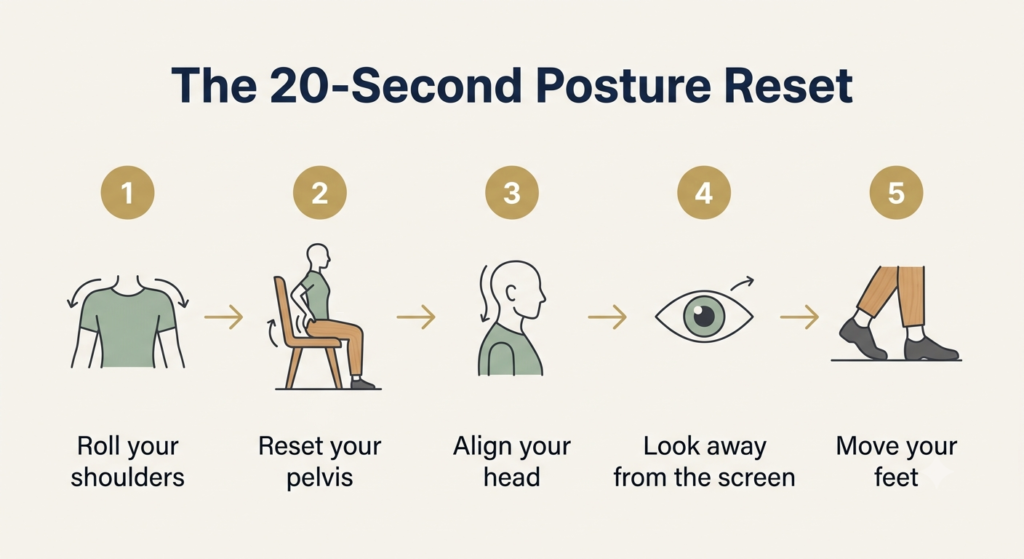
None of this takes more than 15 or 20 seconds, and it doesn’t require standing up if you can’t. What it does is interrupt the one thing static posture punishes most: staying exactly still for too long.
Beyond habits: when your body needs backup
Everything above this point costs nothing but attention, and for most people, most of the time, it’s enough. But if you’re at a laptop eight hours a day, every day, habits alone are working against a design limitation they can’t fully overcome — and at some point, the real fix is a change to your setup, not another reminder to sit up straight.
| If your main problem is… | Consider reading |
|---|---|
| Neck pain from looking down | Best Laptop Stand for Neck Pain & Better Posture |
| Neck and wrist strain during full workdays | Laptop Stand + Keyboard + Mouse: The Complete Ergonomic Laptop Setup Guide |
| You’re building your first ergonomic setup | Ergonomic Laptop Setup Guide: Where to Start and What to Do First |
If your neck is the main complaint and your hands are managing fine, the highest-leverage single purchase is a stand that raises your screen to eye level for good, rather than for the twenty minutes a stack of books holds up. If you’re ready to separate your screen from your hands entirely — the fix that helps the most people the most — that means pairing a stand with an external keyboard and mouse, and it’s worth seeing the pieces work together rather than buying them one at a time. And if none of this sounds familiar yet, and you’re not sure where your own setup should even begin, it’s worth starting with the basics before buying anything at all.
None of this replaces what’s in this guide — it just removes the ceiling that free adjustments and good habits can’t get past on their own.
Frequently asked questions
How can I use my laptop without hurting my neck?
Keep the top of the screen level with your eyes so you’re looking straight ahead rather than down, and keep your ears stacked over your shoulders instead of letting your chin lead. If your laptop’s built-in position won’t allow that, raising it — even with a stack of books for a short session — usually helps more than any change in how you sit.
Is it possible to have good posture on a laptop without a stand?
For short sessions, yes — a stack of books or a sturdy box under the laptop raises the screen for free, and a cushion under you can do the same job in reverse. For a full workday of typing, these fixes run out of road, because raising the screen without separating the keyboard shifts the strain from your neck to your wrists.
How often should I change positions when working on a laptop?
Aim for a quick reset roughly every 20 minutes — rolling your shoulders back, resetting your pelvis, and shifting your visual focus for a few seconds. The goal isn’t to find one perfect posture and hold it all day; it’s to avoid staying in any single position long enough for your body to protest.
Why does working on a laptop cause upper back pain?
Your wrists, shoulders, neck, and upper back work as one chain, not as separate parts. Bent wrists pull tension into your shoulders, and rounded shoulders round your upper spine along with them — so by the time your upper back aches, the strain may have started at your hands hours earlier.
How do you position your body when using a laptop in bed or on a couch?
Prop yourself against a solid backrest instead of sinking into soft cushions, and rest the laptop on something stable — a lap desk, a large book, or a firm pillow — rather than directly on your legs, where it tips the screen down and pulls your neck forward. Treat it as a short-term position, not a spot for a full afternoon of typing.
The Bottom Line: Progress, Not Perfection
There’s no version of this guide that ends with a perfect, permanent posture, because that’s not really how bodies work — yours included. Improving your posture while working on a laptop isn’t a single fix you apply once; it’s the accumulation of a slightly better screen height, hands that stay a little more neutral, and a body that moves more often than it used to. Small, repeated corrections beat one dramatic overhaul that doesn’t last past the first busy week.
Start with whichever part of your body is complaining loudest right now. The rest can wait.
RELATED GUIDES
Ergonomic Lighting for Computer Eye Strain
Glare and dim lighting pull your face closer to the screen just as effectively as a low monitor does.
Read the Guide →How to Choose an Ergonomic Chair for Remote Work
A chair that doesn’t support your spine’s natural curve puts every other habit on this list to work twice as hard.
Read the Guide →About This Guide
Improving your posture while working on a laptop starts with understanding why the design works against you in the first place — not with buying more equipment. This guide explains the everyday habits and simple adjustments that make the biggest difference, and helps you recognize when upgrading your setup is actually worth it.
It’s researched and edited by César Cervantes González (Cerlez) using verified manufacturer specifications and independent reviews rather than hands-on testing.