

🕐 14 MIN ESTIMATED READ TIME
Working away from home has a way of catching up with your body. A laptop on a café table, a rental-apartment chair with no back support, a hotel desk that sits a little too high — none of it feels like a problem at 10 a.m., but by late afternoon your neck, shoulders, and lower back are quietly keeping score.
The encouraging part is that a comfortable ergonomic laptop setup for travel doesn’t require a bag full of gadgets. Three light pieces solve most of the problem, and a few honest habits cover the rest. In this guide we’ll walk through the minimal kit we recommend, what to buy first if you’re starting from zero, and how to work comfortably in the imperfect spaces travel actually gives you — cafés, Airbnbs, airports, and borrowed corners of coworking spaces.
Table of Contents
Affiliate Disclosure: This post contains affiliate links. We may earn a small commission at no extra cost to you. Availability is subject to change—please check the product links for current details.
Why a laptop alone leaves your body hunched on the road
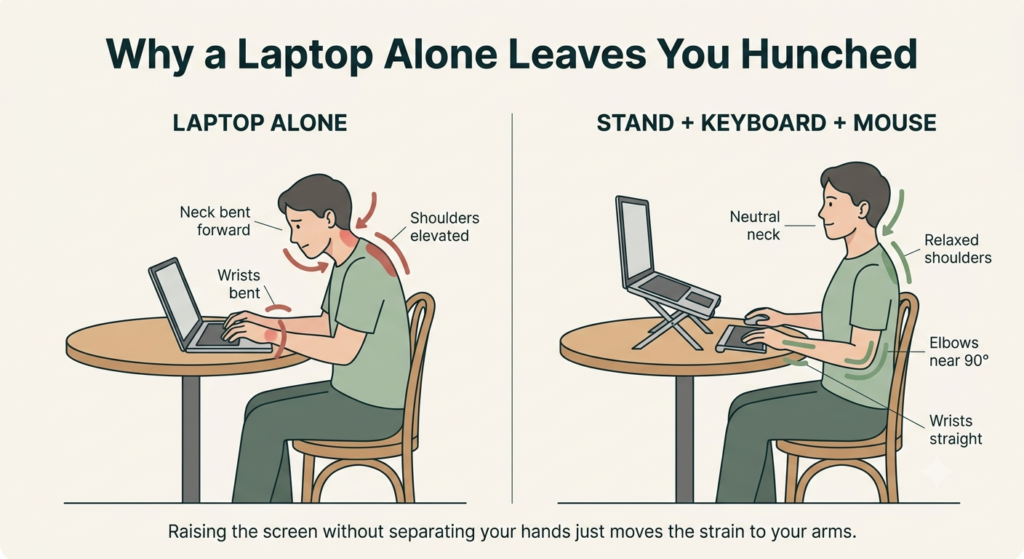
Laptops are wonderful for travel and unkind to posture, and it comes down to one design fact: the screen and the keyboard are attached to each other. If the keyboard sits where your hands are comfortable, the screen sits too low — so you bend your neck down toward it, hour after hour. If you raise the screen, the keyboard rises with it and your shoulders creep up toward your ears. There is no position where your neck and your arms are both happy at the same time.
At home you can work around this with a full desk setup. On the road it gets harder, because you rarely choose your furniture: working comfortably on a laptop without a desk built for you takes a little strategy. The whole point of the travel kit below is to break that screen-keyboard trade-off — raise the screen, bring your hands down, and support your back — with gear light enough that you’ll actually carry it.
If you’d like the deeper background on what laptop posture does to your body and how to correct it, the full mechanics — and how to correct them — are worth a closer look on their own.
Three pieces solve most of the problem — a stand, a keyboard-and-mouse combo, and (if your chairs need it) a lumbar pillow. If budget forces you to choose just one, start with the keyboard-and-mouse combo; the lumbar pillow comes last, since it’s the most situational of the three.
Here’s the kit at a glance:
| Piece | What it fixes | Travel footprint |
|---|---|---|
| Roost V3 Laptop Stand | Neck strain from a too-low screen | About 5.8 oz, folds to 13 inches |
| Logitech Pebble 2 Combo | Raised shoulders and bent wrists | Slim and flat, slides into a sleeve |
| SmartTravel Inflatable Lumbar Pillow | Lower-back slump on unsupportive chairs | Under 6 oz, deflates to pocket size |
The minimal travel kit: 3 essential pieces and what to buy first
A minimalist digital nomad setup needs to do three things: raise the screen to eye level, give your hands a comfortable place to work, and support your lower back on chairs that were never meant for a workday. That’s it. Everything else is optional, and some of it — like a portable monitor — is more weight than benefit for most travelers.
A word on order, because budgets are real: the stand does the heaviest lifting, but only when it’s paired with an external keyboard and mouse — raising the screen without them just moves the strain to your arms. So if you can only make one purchase right now, start with the keyboard-and-mouse combo. It’s the more affordable half, it relaxes your wrists immediately, and it lets you improvise screen height with a stack of books until the stand arrives. The lumbar pillow comes last: it’s genuinely helpful, but it’s also the most situational piece, and we’d rather you buy it because your chairs need it than because a list told you to.
One boundary worth drawing: this kit is for working away from home. If you’re building a permanent desk instead, the right order to handle everything is a better starting point than this travel-specific list — and a stand, keyboard, and mouse system built for a fixed setup solves the same problem without weight and packability as constraints.
Here are the three pieces, and the products we’d trust our own backs to.
A collapsible laptop stand to raise your screen
Raising the screen is the single biggest postural fix available to a laptop worker. The stand’s job is simple: bring the top of the screen up to about eye level so your neck stays upright instead of curled toward the table.
Our pick: Roost V3 Laptop Stand. The Roost has earned its reputation among people who work everywhere and carry everything. It weighs about 5.8 ounces, folds down to roughly 13 inches — about the size of a rolled-up magazine — and opens in seconds, holding your laptop anywhere from 6 to 14 inches high so the screen reaches true eye level whether you’re tall, petite, or stuck with a low coffee table. Rubber insets keep the laptop firmly in place once it’s up. It’s the rare piece of gear so light there’s never a reason to leave it behind, and that matters more than anything else about it: the best stand is the one that’s actually in your bag. Its honest limitation is that it doesn’t work alone — once the screen is raised, you’ll need an external keyboard and mouse to type at all.
What we like
- Featherlight in the bag: at about 5.8 ounces it disappears into a backpack pocket, so it comes with you every day instead of being “saved” for special trips.
- Raises the screen to true eye level: your neck stays upright instead of bent toward the table — a difference your shoulders will notice by the second day, not the second week.
- Steady on imperfect tables: the grip arms and rubber insets hold the laptop firmly, so the screen doesn’t wobble while you type on your external keyboard, even on the slightly uneven tables cafés specialize in.
What to keep in mind
- It needs company to work: with the screen raised, the laptop’s own keyboard is out of reach — without an external keyboard and mouse, the stand alone can’t help you.
- It’s expensive: the Roost costs noticeably more than basic stands.
Best for: anyone who works away from a fixed desk often enough that screen height is a daily problem, not an occasional one.
Not the right fit if: you’re not ready to also carry an external keyboard and mouse — on its own, this stand just moves the strain instead of solving it.
The Roost folds down to roughly 13 inches — about the size of a rolled-up magazine — and opens in seconds.
A compact wireless keyboard and mouse to drop your shoulders
Once the screen is up, your hands need somewhere comfortable to land. An external keyboard and mouse let your elbows rest near your sides and your wrists stay straight — shoulders down, forearms level, the way your body wants to work.
Our pick: Logitech Pebble 2 Combo (wireless keyboard and mouse). The Pebble 2 Combo bundles a slim Bluetooth keyboard and a compact mouse into one tidy purchase, which suits a travel kit perfectly: one box, one decision, two problems solved. Both pieces are quiet, light, and flat enough to slide into the laptop sleeve of a backpack, and each pairs with up to three devices, switching with a single press. The batteries are a small travel kindness of their own — up to three years in the keyboard and two in the mouse — so recharging never joins your list of worries, and both pieces are made partly from recycled plastic, a quiet point in their favor. The honest limitation is in the name: this is a travel combo, not specialist ergonomic equipment. The keys are flat rather than contoured, and the mouse favors portability over palm support.
What we like
- Quiet keys and clicks: you can work at a shared table, a library, or a hushed café without the clatter — a small courtesy to the people around you that also makes long public sessions feel less self-conscious.
- Slim enough to live in your bag: the pair adds so little weight and bulk that bringing proper input devices stops being a daily debate — they’re simply always there.
- Switches between devices at the press of a key: jump from laptop to tablet without re-pairing, which is genuinely handy when your “office” changes three times in one day.
What to keep in mind
- Flat, low-profile keys: this is a compact travel keyboard, not a contoured one. If you already live with wrist strain, a split or cushioned board will support your hands better
- The mouse runs small: its low profile is what makes it packable, but larger hands may miss a fuller grip on long days.
Best for: anyone who wants a single, simple purchase to get their hands off the laptop’s built-in keyboard while traveling light.
Not the right fit if: you already deal with wrist strain — a contoured or split keyboard will support your hands better than this compact, flat design.
A travel lumbar pillow to support your lower back
The stand and the combo take care of everything above the table. The pillow looks after what’s below it: your lower back, which spends travel workdays pressed against chairs designed for a thirty-minute meal, not an eight-hour shift.
Our pick: SmartTravel Inflatable Travel Lumbar Pillow. This one works differently from the foam cushions you might be picturing: it’s an inflatable lumbar cushion with a memory-foam layer and a removable, washable cover, and that design is exactly what makes it right for travel. It inflates in a few breaths when you arrive and deflates flat when you leave, and an adjustable strap holds it to the chair so you’re not nudging it back into place all afternoon. The same pillow that supports you through a workday also makes plane seats, trains, and long drives kinder to your back. One useful tip: it feels most natural left a little under fully inflated, with some give to it. This is the piece of the kit we’d call honest-but-situational: when the seating is bad, it makes a real difference to how you feel at the end of the day; when the seating is already decent, it mostly stays in the bag. We’d rather tell you that plainly than oversell it.
What we like
- Restores the curve flat chairs take away: it supports your lower back so you’re not slowly sliding into a slump by mid-afternoon — the kind of ache you only notice once it has already settled in.
- Firmness you can tune to the chair: add air for firmer support, release a little for a softer fit — each day’s seat gets the version your back needs, which is exactly what working in changing spaces calls for.
- Packs down to almost nothing: deflated, it folds to about the size of your hand and weighs under six ounces, so it rides along even on the days you’re not sure you’ll need it.
What to keep in mind
- It’s an air cushion, and it feels like one: the support is springier than solid foam, and it can’t rescue a truly bad seat — a backless stool is still a backless stool.
- The most situational piece of the kit: if the places you work usually have reasonable chairs, it may sit unused — which is exactly why we suggest buying it last, not first.
Best for: anyone who regularly works from chairs with little or no back support — café stools, dining chairs, budget rentals.
Not the right fit if: the chairs in your usual work spots are already decent — this is the piece most likely to sit in your bag unused.
What to look for in portable ergonomic gear
If you’d rather shop around than take our picks, the criteria matter more than the brands. Good lightweight ergonomic laptop gear earns its place in your bag four ways: it adjusts (a stand that can’t reach your eye level can’t help your neck), it stays put (wobble defeats the purpose), it works quietly (you’ll be a guest in most of the places you work), and it sets up fast (gear that takes five minutes to assemble gets skipped on short sessions).
Balancing durability, weight, and packability
These three pull against each other, and it helps to admit it. The lightest gear tends to cost more or feel more delicate; the cheapest folding gear sometimes wobbles or wears out at the hinges; the sturdiest gear is rarely the lightest. Our honest rule of thumb: choose the lightest option that still feels solid in your hands, because the kit you’ll actually carry beats the perfect kit you leave at home. And pack with a little care — keyboards travel best lying flat against the laptop, not loose at the bottom of the bag where corners and water bottles win every argument.
How to work ergonomically in imperfect spaces
Gear is half the answer. The other half is knowing how to work ergonomically from coffee shops, rentals, and whatever space the day hands you — because no stand or pillow chooses your table for you. A few habits cover most situations.
Before you book: what to check ahead of time
A few minutes of checking before you commit to a place can save you from working around a bad setup all week. If a listing includes photos, look specifically for a real chair with a back — not just a stool or a bench — and check whether a desk or table appears at all, since kitchen counters and coffee tables tend to be the wrong height either way. For hotels, “work desk” is common enough in room descriptions to search for directly, and it’s worth a two-minute look before booking a room without one.
None of this needs to be perfect. It’s just easier to bring your kit to a decent starting point than to fight a bad one all week.
Set up fast, in the right order
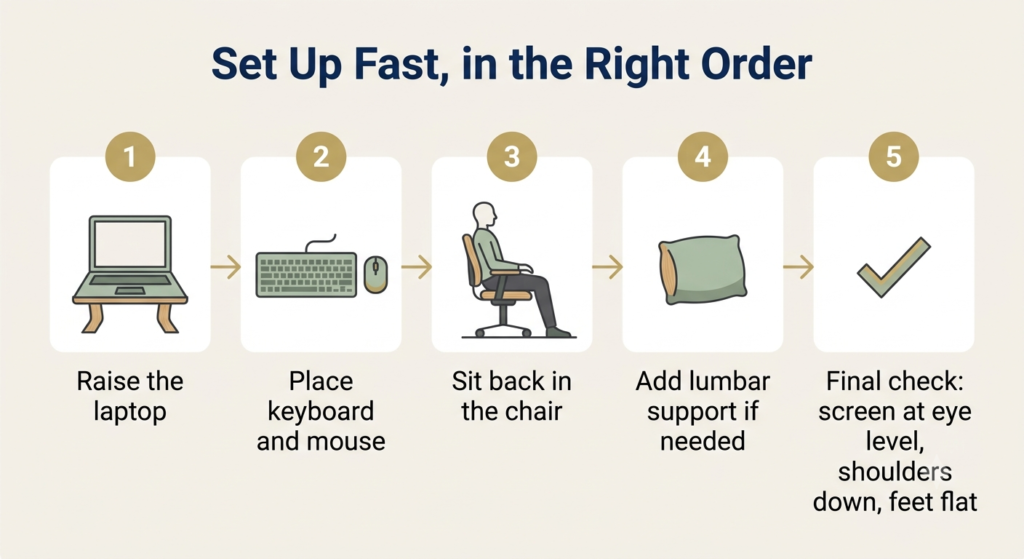
Make arrival a sixty-second routine, always in the same order. Unfold the stand and set the laptop so the top of the screen sits at about eye height. Place the keyboard and mouse in front of it, close enough that your elbows rest near your sides at roughly a right angle, wrists straight. Sit all the way back in the chair — and if it needs help, a few breaths inflate the pillow for your lower back. Then one quick check before you start: screen at eye level, shoulders down, feet flat. Done in the same order every time, it stops being a chore and becomes the way you sit down to work.
When the chair has no support
Sit all the way back rather than perching on the edge — a backrest only helps if you’re touching it. Place the lumbar pillow just above your belt line; if it’s a day you left it behind, a rolled-up jacket or towel does a humbler version of the same job. If you’re stuck with a backless stool, be honest with yourself about the session: sit tall, keep it shorter, and take breaks more often instead of pushing through a long afternoon your back will remember.
When the table or seat height is wrong
Comfort is a chain that runs from your eyes to your feet, and travel furniture usually breaks it somewhere in the middle. If the table is too high, raise yourself instead — a folded blanket or cushion under you brings your forearms level with the surface so your wrists stay straight. If your wrists still end up pressing against a hard table edge, a slim wrist rest is a small fix that travels well. If the table is too low, extend the stand higher, or borrow the oldest trick in the book and set it on a couple of sturdy books. And if your feet dangle once you’re seated at the right height, rest them on your bag or a box — knees at about hip height takes real pressure off your lower back.
Easing eye strain and neck fatigue in long sessions
Distance and light do most of the work here. Keep the screen about an arm’s length away, and follow the 20-20-20 habit: every 20 minutes, look at something about 20 feet away for 20 seconds — it gives your focusing muscles a genuine rest. Sit sideways to bright windows when you can, so you’re not squinting into glare or staring at a screen against backlight. And every hour or so, stand up, roll your shoulders, and let your neck reset; no setup, however good, replaces a little movement. Light deserves more attention than most travel guides give it — how to light a workspace for visual comfort is worth its own read if your eyes are the part of you that complains first.
Frequently asked questions
What is the essential minimum ergonomic gear for traveling remote workers?
A collapsible laptop stand plus a compact wireless keyboard and mouse — together they fix the biggest problems: a too-low screen and strained wrists and shoulders. A travel lumbar pillow is a worthwhile third piece if the chairs where you work tend to be poor. Start there, and add more only if your body asks for it.
How do you maintain good posture at cafes or Airbnbs with bad chairs?
Sit all the way back so the backrest actually supports you, place a lumbar pillow or rolled jacket at your lower back, and keep your feet flat — on your bag if they dangle. Raise your screen to eye level with a stand or a stack of books. No bad chair becomes a good one, so take short breaks more often than you would at home.
How can I support my wrists and lower back without a proper desk?
An external keyboard and mouse let your wrists stay straight at whatever height your forearms are comfortable, which a laptop keyboard can’t offer once the screen is raised. For your lower back, a travel lumbar pillow — or a rolled towel — fills the gap most chairs leave. Avoid working with the laptop on your lap for long stretches; it forces both problems at once.
How do you reduce eye strain and neck pain during long mobile work sessions?
Keep the top of the screen at eye height and about an arm’s length away, and rest your eyes regularly — every 20 minutes, look at something distant for 20 seconds. Avoid facing into glare or strong backlight, and stand up for a brief reset every hour. Small habits, repeated, do more than any single accessory.
Is it possible to have a healthy ergonomic laptop setup while traveling light?
Yes, honestly so. A folding stand, a slim keyboard and mouse, and a packable lumbar pillow cover screen height, hand position, and back support while adding very little weight or bulk to your bag. The goal isn’t a perfect office in your backpack; it’s reducing the hours of daily strain that add up.
The Bottom Line: Building Your Setup at Your Own Pace
There’s no hurry here, and no need to buy everything at once. Start with whatever your body complains about most: if it’s your wrists and shoulders, the keyboard-and-mouse combo is the natural first step; if it’s your neck, pair it with the stand as soon as you can, because those two together are the heart of an ergonomic laptop setup for travel. Add the lumbar pillow when the chairs in your life prove they need it. And if nothing hurts yet, that’s the best moment to start small — comfort is far easier to keep than to win back.
If you’d like to compare beyond our three picks, you can browse more portable ergonomic laptop accessories using the same rule: buy in the order your body actually complains, not all three pieces at once.
RELATED GUIDES
How to Improve Your Posture While Working on a Laptop
For the deeper background on what laptop posture does to your body and how to correct it.
Read the Guide →Laptop Stand + Keyboard + Mouse: Complete Guide
If you’re building a permanent desk instead, this solves the same problem without weight and packability as constraints.
Read the Guide →About This Guide
The purpose of this guide is simple: help you stay comfortable working from a laptop on the road, without carrying a full desk with you. Instead of assuming you have the perfect setup, it shows you how to make the most of the places you actually end up working — cafés, hotel rooms, and rental apartments — and how to decide which ergonomic accessories are genuinely worth packing, especially if you can’t buy everything at once.
It’s researched and edited by César Cervantes González (Cerlez) using verified manufacturer specifications and independent reviews rather than hands-on testing.