
🕐 14 MIN ESTIMATED READ TIME
If your eyes feel tired, dry, or achy after a long day on your laptop, the lighting around you may be part of the problem. Good lighting can noticeably reduce the strain of working on a screen for hours—but it helps to be honest from the start: light is one piece of the puzzle, not a cure. It won’t replace eye rest, sensible screen settings, or a visit to an optometrist if your symptoms persist. This guide focuses on ergonomic lighting for computer eye strain in a real home setup—a laptop with a small, bright screen—and walks you through how to light your workspace so your eyes can relax. Lighting is one layer of a comfortable workspace; if you’re building yours from scratch, the basics of an ergonomic laptop setup are a good starting point.
Table of Contents
Affiliate Disclosure: This post contains affiliate links. We may earn a small commission at no extra cost to you. Prices and availability are subject to change—please check the product links for current details.
Why Lighting Affects Eye Strain (and What It Can’t Fix)
Your eyes work hardest when they have to cope with sharp differences in brightness. A glowing screen in a dim room, a lamp glaring off your display, or light that washes out the text you’re reading all force your eyes to keep readjusting, and that constant effort is what you feel as fatigue by mid-afternoon.
Lighting is one of several factors behind digital eye strain, alongside screen brightness, viewing distance, how often you blink, and whether your vision is properly corrected. Getting the light right removes one major source of strain—often a big one—but it can’t undo the effects of staring at a screen all day without a break. Think of good lighting as the foundation that makes everything else more comfortable, not as a fix on its own.
Three lighting fixes, three different problems — none is a universal answer. Match the light to what’s actually wrong: screen glare with an external monitor (Quntis Light Bar), one solution for laptop and monitor together (BenQ Desk Lamp), or nighttime screen-to-room contrast (Luminoodle Bias Lighting).
Match the light to your setup
| If this is your situation | Look for | Consider |
|---|---|---|
| Screen glare is your main problem and you use an external monitor | A light bar mounted above the screen, aimed at the desk | Quntis Monitor Light Bar |
| You want one lighting solution for both a laptop and an external monitor | A high-CRI, flicker-free desk lamp with adjustable color temperature | BenQ e-Reading Desk Lamp |
| You work at night with an external monitor and the room feels too dark around the screen | A soft bias light behind the monitor to reduce screen-to-room contrast | Luminoodle Bias Lighting |
The Laptop-at-Home Challenge: Small, Bright Screens and Reflections
A laptop is built for portability, not for all-day comfort, and that shows in how it lights up your field of view. The screen is small, so you tend to lean in and read smaller text up close. It’s usually bright, often glossy, and it sits low and near—right where overhead lights and windows behind or beside you can bounce straight into your eyes.
Most lighting advice is written for a generic office with a large external monitor. If your main screen is a laptop, your needs are a little different: you can’t clip accessories onto a thin laptop lid, and your screen is more exposed to reflections than a big matte monitor would be. That makes deliberate, well-placed room and task lighting your most important tool—a point worth keeping in mind as we go, because a few of the popular lighting products only make sense once you’ve added an external monitor. If you’re weighing that step, choosing the right external monitor for laptop-based remote work is a decision worth getting right on its own.
How Much Light You Actually Need (and Why Working in the Dark Backfires)
The goal is balance: the light in your room should be roughly in keeping with the brightness of your screen, so your eyes aren’t jumping between a bright display and dark surroundings.
This is why working in the dark with only your screen for light tends to backfire. When the screen is the brightest thing in a dim room, the contrast is harsh, and your eyes work overtime adjusting between the glowing display and the shadows around it. A softly lit room is easier on the eyes than a dark one. At the other extreme, a space that’s too bright—or lit so the light competes with your screen—creates glare and washout. For focused desk work, aim for comfortable, even room light, then set your screen brightness to match your surroundings rather than overpower them. You don’t need a light meter to judge this—a quick visual check is enough. If your screen looks like it’s floating in the dark, you need more ambient light; if you start noticing reflections on the screen or catch yourself squinting, there’s too much light or it’s poorly placed.
Color Temperature: Which Light Is Easiest on Your Eyes
Color temperature, measured in kelvin (K), describes whether light looks warm and yellowish or cool and bluish. Warm light (around 2700-3000K) feels cozy and relaxing; cool, daylight-like light (around 4000-5000K) feels crisp and alert.
For focused work during the day, many people find a neutral-to-cool white—somewhere around 4000 to 5000K—comfortable, because it supports concentration and renders text and detail clearly. In the evening, warmer light is gentler and less likely to keep you wired. Honestly, though, there’s no single “correct” number, and the effect on eye strain is modest rather than dramatic: the best color temperature for remote work depends on the time of day and your own preference. A lamp with adjustable color temperature lets you shift from cooler light by day to warmer light at night, which is the most flexible choice if you’re buying one anyway.
CRI: Why Color Accuracy Matters for Reading and Detail Work
CRI, or Color Rendering Index, is a score up to 100 that tells you how faithfully a light shows colors compared with natural daylight. The higher the number, the truer colors and text look under that light.
In practice, low-CRI light makes everything look slightly flat or “off”—whites look dingy, colors look muted—and your eyes do extra work to interpret what they’re seeing. Higher CRI matters most if you read printed documents, edit photos, work with color, or simply want a printed page and your screen’s colors to look natural and easy to read. For comfortable detail work, look for a CRI of 90 or above; 80 and up is acceptable for general use. A high-CRI desk lamp for reading documents is one of the more worthwhile features to prioritize, because color accuracy quietly reduces the effort your eyes spend all day. Color accuracy isn’t the only quality worth checking, either: look for a light that’s flicker-free, because some cheaper lamps pulse in a way you may not consciously notice, and that flicker can add to eye fatigue just as much as a poor color temperature.
Cutting Glare and Reflections on Your Screen
Glare comes in two forms: light shining directly into your eyes, and light reflecting off your screen. Both are common culprits behind home office eye strain, and both are usually fixable without spending anything.
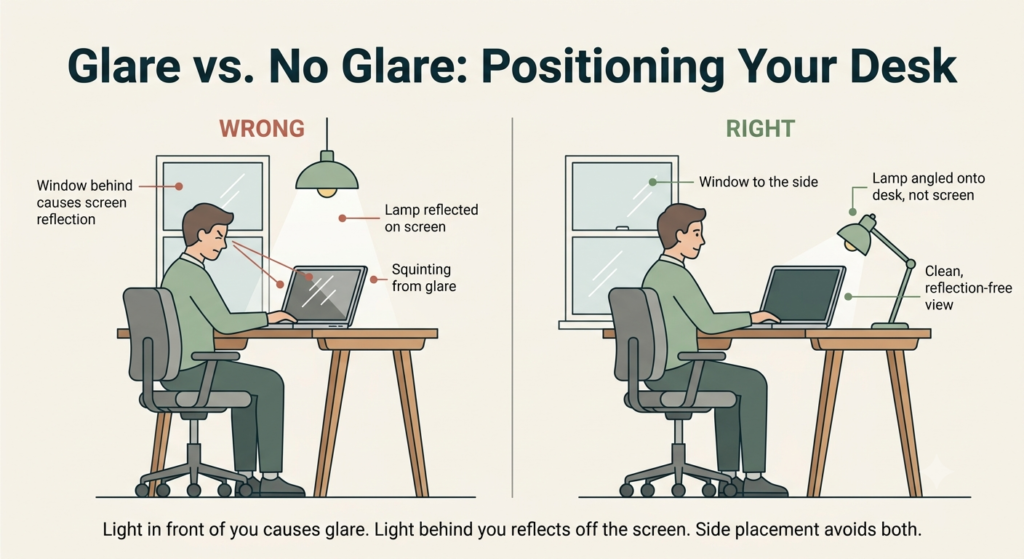
The biggest offenders are windows and overhead lights. Position your desk so windows are to the side rather than directly in front of or behind you—light in front causes glare, light behind reflects off the screen. Use blinds or sheer curtains to soften strong daylight. Tilt your screen slightly to redirect reflections, and where you can, favor softer, indirect light over a bright bulb shining toward your desk. A matte screen or a matte screen protector also helps a glossy laptop resist reflections.
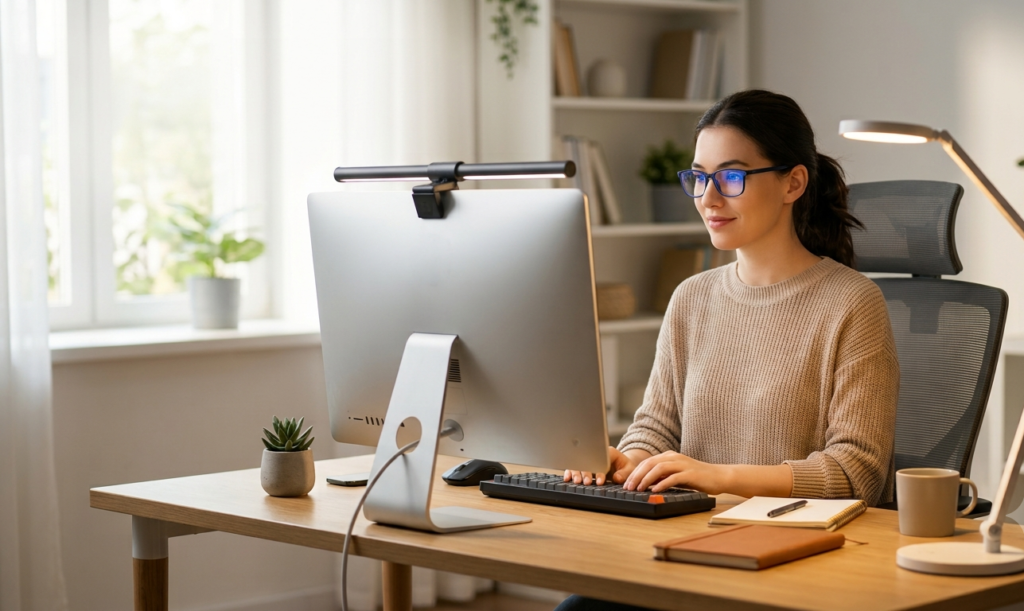
For home office lighting to reduce glare on an external monitor, a monitor light bar is purpose-built for the job. It clips onto the top of a monitor and uses asymmetrical optics to throw light down onto your desk and keyboard while keeping it off the screen itself.
Our pick: the Quntis Monitor Light Bar.
What we like
- Delivers the core monitor-bar advantage at an accessible price (around $35-45) — most of the benefit without a premium cost.
- Frees up desk space — it sits above the screen instead of taking room on your desk.
- Simple USB setup with adjustable light — it clips on, powers over USB, and lets you adjust brightness and warmth.
What to keep in mind
- Some light bleed onto the screen — its optics aren’t as precise as the BenQ, so a little light can spill onto the display and trim the anti-glare benefit.
- Requires an external monitor — like all monitor bars, it won’t help if your only screen is a laptop.
Best for: anyone who already has an external monitor and gets glare or reflections while working at a desk. Not the right fit if: your only screen is a laptop — a monitor light bar has nothing to attach to without an external display.
Where to Position Your Desk Lamp
A desk lamp is the most important light for a laptop user, because it’s the one you can aim precisely—and unlike a monitor bar, it works no matter what screen you use. Knowing how to position a desk lamp for a laptop comes down to one idea: light your work without lighting your eyes or your screen.
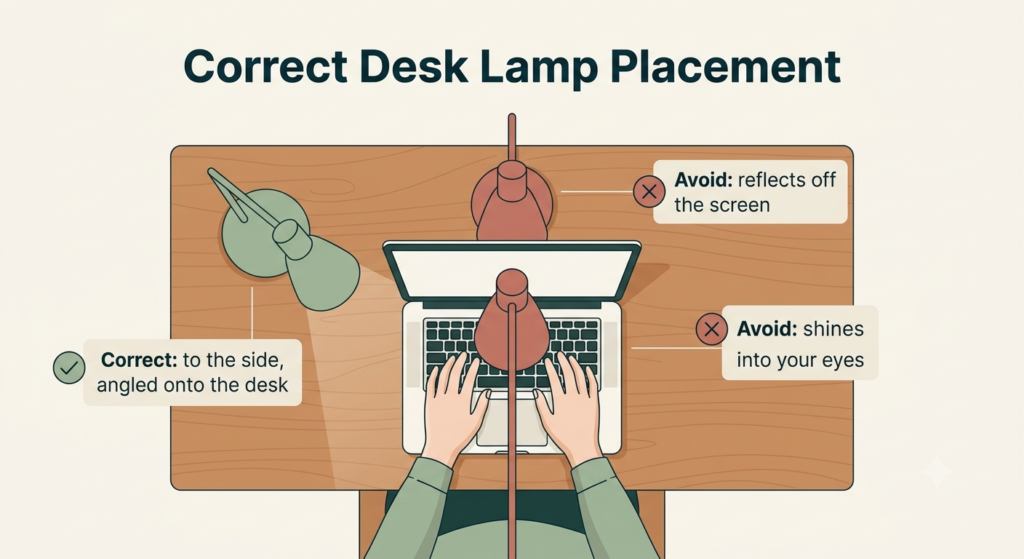
A few simple principles cover most situations. Put the lamp to the side rather than in front of you, so it doesn’t shine into your eyes, and not directly behind you, where it would reflect off the screen. Keep the head below your direct line of sight and angle it down onto your desk, documents, or keyboard—not at the display. If you write by hand, position it on the opposite side from your writing hand (a lamp on the left for a right-hander) so your hand doesn’t cast a shadow. Above all, keep the bulb out of the screen’s reflection zone: if you can see the lamp mirrored in your screen, move it.
For a task lamp that handles all of this well, the BenQ e-Reading Desk Lamp is a strong all-around choice—and notably, it’s the one recommendation here that suits everyone, including people who only use a laptop.
What we like
- Wide, even illumination — it spreads light across the desk rather than leaving a bright hot spot and dark edges, so your eyes aren’t constantly adjusting between the two.
- CRI over 95 — colors and printed text look true and natural, which makes document and detail work easier on the eyes.
- Adjustable color temperature and brightness — cooler light for daytime focus, warmer light in the evening, and dimming to match your room.
- Flicker-free with RG0 blue-light safety — steady, low-risk light designed to stay comfortable over long sessions.
What to keep in mind
- A real investment — it costs considerably more than a basic desk lamp, so it’s worth it mainly if you work long hours and value the light quality.
- More controls than some people need — its screen and paper modes and fine adjustments can feel like more than a casual user will ever use.
Best for: anyone who wants one light that works whether they’re using a laptop alone or paired with a monitor, and who reads documents or does detail work often enough that CRI matters. Not the right fit if: you just need basic illumination and won’t use the extra controls — a simpler lamp will do the job for less.
A CRI over 95 means colors and printed text look true and natural — the same category of accuracy professional photo editors rely on, just applied to your desk lamp.
Layering Your Light: Task, Ambient, and Natural Together
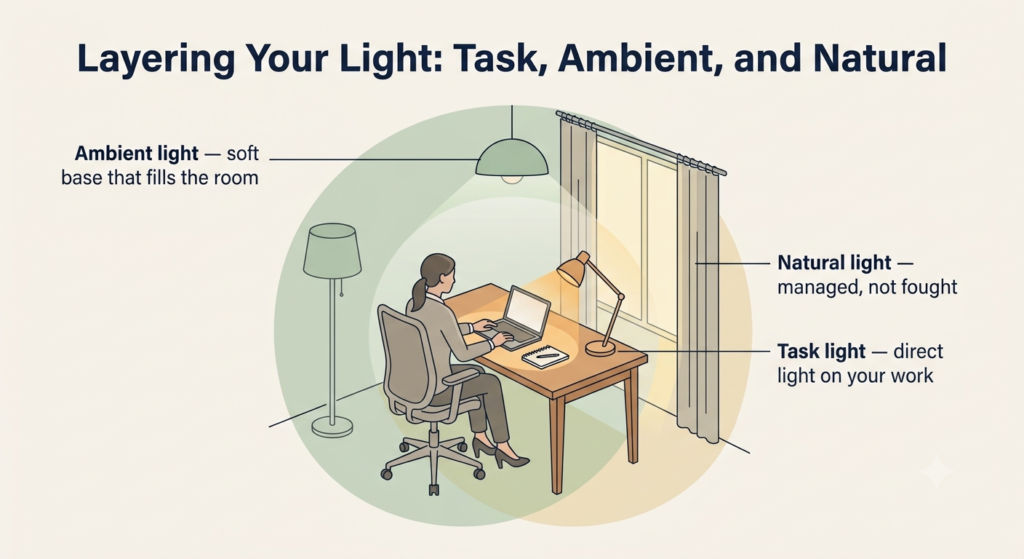
Comfortable lighting rarely comes from a single source. The most restful setups layer three kinds of light—task, ambient, and natural—so no one of them has to be harsh. Balancing task and ambient lighting for eye comfort is what keeps contrast gentle across your whole field of view.
Task Lighting: Direct Light Where You Read and Write
Task lighting is the focused light—usually your desk lamp—that illuminates what you’re actively working on, like papers or your keyboard. It matters most when you’re reading print or switching between a document and your screen. Aim it at the work, keep it off the display, and don’t make it so bright that it overpowers the rest of the room; a strong pool of light surrounded by darkness just recreates the harsh contrast you’re trying to avoid.
Ambient Lighting: A Soft Base That Reduces Contrast
Ambient lighting is the general, indirect light that fills the room. Its job is to lift the overall light level so your bright screen isn’t floating in shadow. A ceiling light, a floor lamp bounced off a wall or ceiling, or a soft second lamp across the room all work well. The aim is soft and even, not bright and direct.
If you work at night with an external monitor, a bias light is a tidy way to add this soft base right where it counts. The Luminoodle Bias Lighting is a white LED strip that mounts on the back of a monitor and casts a gentle glow onto the wall behind it.
What we like
- Reduces screen-to-room contrast — the glow behind the monitor softens the harsh jump between a bright screen and a dark wall, easing late-night strain.
- 6500K neutral white light — a clean daylight-white that supports accurate color and comfortable viewing, which is better for work than color-changing RGB.
- USB-powered and easy to install — it runs off a USB port and sticks on in minutes, with nothing complicated to set up.
What to keep in mind
- Designed to mount behind a monitor — it isn’t well suited to a laptop on its own; if you’re laptop-only, a soft lamp placed behind or beside your screen achieves the same contrast reduction.
- A finishing touch, not a foundation — it eases contrast at night but doesn’t replace proper task and ambient lighting during the day.
Best for: anyone working at night with an external monitor who notices eye strain from the contrast between a bright screen and a dark room. Not the right fit if: you’re laptop-only — a soft lamp placed behind or beside the screen achieves the same effect without needing a monitor to mount to.
Working With Natural Light: Using Windows Without Glare or Shadows
Natural light is the most pleasant light to work in, but it’s also the least predictable, so it needs managing. Place your desk so a window is to your side rather than ahead of or behind you: facing a window leaves you squinting against the brightness, while a window at your back reflects off the screen.
To combine daylight with your lamps without creating hard shadows, the key is to fill, not fight. When sunlight is strong on one side, turn on a soft ambient light on the opposite side to balance it, so one half of your desk isn’t bright while the other falls into shadow. Sheer curtains help by spreading harsh midday sun into a softer, even light. As the daylight fades, gradually bring up your task and ambient lighting to keep the room’s brightness steady rather than letting it dim around your still-bright screen.
Putting It All Together: A Quick Setup Checklist
Here’s how the pieces come together, in order:
- Set your screen brightness to match the room, not to overpower it.
- Position your screen with windows to the side, not in front of or behind you.
- Add soft ambient light so your screen isn’t the only bright thing around.
- Place a task lamp to the side, angled onto your work and out of the screen’s reflection zone.
- Choose light around 4000-5000K for daytime focus, warmer in the evening—ideally adjustable.
- Look for a high CRI (90+) if you read documents or work with color.
- Manage daylight as it changes, filling shadows from the opposite side.
- If you use an external monitor, consider a monitor light bar for glare and a bias light for night work.
It’s worth doing once, deliberately, rather than adjusting it piecemeal each day.
The Limits of Good Lighting: Rest, Habits, and When to See a Professional
Even a perfectly lit desk can’t protect your eyes if you never look away from the screen. The most effective habit costs nothing: the 20-20-20 rule—every 20 minutes, look at something about 20 feet away for 20 seconds—gives your eyes a regular rest from close focus. Blinking often (screens make us blink less), taking real breaks, and keeping your screen about an arm’s length away all matter as much as the lighting around you. Posture and viewing distance shape comfort just as much, so it’s worth improving your posture for laptop work alongside your lighting.
It’s also worth adjusting your screen itself—matching its brightness to the room, raising the text size so you’re not leaning in, and using a warmer night setting after dark. And if your eyes stay strained, dry, or sore despite a good setup and good habits, that’s a sign to see an optometrist rather than buy another lamp. Persistent symptoms can point to an uncorrected prescription or another issue that lighting simply can’t address. Good lighting makes long workdays more comfortable; it doesn’t replace rest or professional care.
Frequently Asked Questions
Where should I place my lamp to avoid screen reflections?
Put it to one side and angled down onto your desk or documents, not facing you and not directly behind you. Keep the bulb out of your direct line of sight and out of the screen’s reflection zone—if you can see the lamp mirrored in your display, move it until you can’t.
What color temperature (CCT) is least tiring for long workdays?
A neutral-to-cool white around 4000-5000K suits daytime focus for most people, with warmer light in the evening. There’s no single perfect number, though—it depends on the time of day and your preference, so an adjustable lamp is the safest choice.
Is it bad to work in the dark with only my screen for light?
It’s hard on your eyes. A bright screen in a dark room creates a harsh contrast that your eyes have to keep adjusting to. Add some soft ambient light so the room and screen are closer in brightness, and you’ll likely feel less fatigue.
How do I combine window light with lamps without creating shadows?
Balance it: when daylight is strong on one side, add a soft light on the opposite side so your desk is evenly lit instead of half-bright and half-shadowed. Sheer curtains soften harsh sun, and bringing your lamps up as the daylight fades keeps the brightness steady.
What is CRI, and why does it matter for remote work?
CRI (Color Rendering Index) is a score up to 100 for how accurately a light shows colors compared with daylight. Higher CRI makes text and colors look true rather than washed out, so a lamp with a CRI of 90 or above is easier on the eyes for reading documents and any color work.
Conclusion: Comfortable Light Is a Habit, Not a Gadget
Comfortable lighting isn’t about buying the most expensive lamp—it’s about arranging light thoughtfully and pairing it with good habits. Balance your room and screen brightness, choose a color temperature and CRI that suit your work, keep glare and reflections off your screen, and layer task, ambient, and natural light so nothing feels harsh. If you only use a laptop, a good desk lamp and well-managed room light will do most of the work; the monitor bars and bias lights are there for when you add an external screen. Set it up with care, rest your eyes along the way, and the light around you becomes something you no longer notice—which is exactly the point.
If none of these three exactly fits your situation, you can browse more office lighting for eye strain options using the same rule: match the light to the problem you actually have — glare, universal coverage, or nighttime contrast — not just the nicest-looking lamp.
RELATED GUIDES
Best External Monitors for Laptop Remote Work
Several of the lighting products here only make sense once you’ve added an external monitor — this decision is worth getting right first.
Read the Guide →How to Improve Your Posture While Working on a Laptop
Lighting is one layer of comfort — posture and viewing distance shape eye strain just as much.
Read the Guide →About This Guide
This guide is meant to help you create a laptop workspace that’s easier on your eyes during long hours of computer work. Instead of focusing on lighting products first, it explains how the way your workspace is lit affects visual comfort, so you can make better decisions about what—if anything—you actually need to change.
It’s researched and edited by César Cervantes González (Cerlez) using verified manufacturer specifications and independent reviews rather than hands-on testing.